
Superalgos Desktop App
The Superalgos Desktop App is the client application of the Superalgos Platform suite and provides a visual environment for developing and automating crypto-trading strategies.
The app's vocation is to become a comprehensive trading automation system. This is not a simple plug-and-play bot. It is a platform that allows you to design and automate a wide variety of strategies, with great flexibility.
However, flexibility and fine user control over the way bots operate come at a cost: the learning curve required to tap into the app's full potential. That said, we do intend to make light use of the app as easy as possible, for instance, for loading existing strategies and trading live right off the bat, with minimal input.
This is a pre-release in alpha stage. The app is still under heavy development. We appreciate your help in testing the app and reporting any errors you may experience.
We will keep improving user experience with your feedback.

System Requirements
The Superalgos Desktop App is a web app, therefore, it is cross-platform. The team is testing mostly on Windows systems, but there are users on Mac and Linux systems as well.
The minimum hardware setup recommended for actively using the app, designing strategies and interacting with the charts is 8 GB of RAM and a dual-core processor at 2.4 GHz.
The minimum hardware setup for a virtual machine (VM) or a virtual private server (VPS) destined to trade live and not intended for active use is 4 GB of RAM and a dual-core processor at 2.4 GHz. This is recommended to minimize deployment costs. Under this configuration, the app becomes slow to react to user input. Under such configuration, you should start the live trading session and minimize the browser for lower CPU and memory consumption.
The following recommendations may make your life easier using this pre-release in alpha stage:
-
We highly recommend you use Chrome to run the app so that you have a similar environment as developers in case you need help. We are not testing on any other browsers.
-
You will benefit from having a decent Console / Command Line application for similar reasons: we hope you won't need it, but in case you do, it may save you lots of hassle and make a difference troubleshooting and getting help from the community. We recommend Console Emulator Cmder.
Setting the Right Expectations
Please refer to the Superalgos Desktop App page to understand who this app is directed at, as well as what you can expect from the app in terms of user experience, current features and limitations.
Beyond the list of Current Features & Limitations you will find on the website, what you will get is a client application that runs entirely on users' machines. This is to fulfill the design principle of a trustless deployment: you don't need to trust any third party with your Strategies, API Keys, personal information, or funds.
Traders rely on data sets for backtesting. The app retrieves raw trades data directly from exchanges and processes data to produce candles and a few indicators, which are stored in your local machine.
The volume of trades data generated at exchanges is massive. Exchanges APIs impose limits on the bandwidth of data you may retrieve from your machine per unit of time. To save you from spending days or weeks running processes to retrieve the data you will need for backtesting, we include historic market data in our releases.
This has a small non-monetary cost associated: the zip files you will download are a bit heavy and highly compressed. As a result, it may take 30 to 60 minutes for your machine to decompress the files. Also, a second small cost is that this adds a step in the process to fire up the app the first time.
Motivation
Superalgos is pre-releasing an early alpha-stage version of the Superalgos Desktop App, in the hope that early adopters will help us shape the software and evolve it into a robust product. We try our best to make installation and operation easy, but at this point, the app is directed at tech-savvy individuals with a knack for learning a few PC operator tricks while installing and using the app.
If you don't consider yourself an early adopter and usually go to your 10-year-old for advice on using your PC, you may still give it a shot. Developers and users in the Community will be happy to give you a hand and get you up and running.
We value highly all feedback. We are listening and actively participating in the various Superalgos Community group.
We keep a wish list for new features in the form of issues in this repository. If you are missing a key feature, feel free to open an issue using the improvement label.
However, bear in mind that the app is at an early stage of development and that the current priority is stabilization and delivery of core features.
Table of Contents
- Getting Started
- Upgrading Your Existing Installation
- Overview
- Charts Interface
- Designer
- Managing Processes
- Testing and Simulations
- Forward Testing and Live Trading
- Advanced Use
- Troubleshooting
- Reporting Bugs
- Technical Overview
Getting Started
Before You Begin
This Getting Started Guide will quickly show you the very basics of the app so that you can rapidly grasp the app's potential. It will take you through a sequence of instructions that you need to follow to download and install the app, run it for the first time, import an existing strategy and run your first backtest.
Bear in mind that the app evolves fast. We do our best to keep this README up to date, however, some of the images illustrating these explanations may defer from what you will find in the app.
WARNING: The Superalgos Desktop App is at a very early stage of development. As such, errors may occur at any point, including errors that can cause you to lose money. You are responsible for taking all precautions before starting trading live. Make sure you forward test with small amounts of money, the kind you can afford losing. Trade live at your own risk.
Initial Setup: The Quick Version for Experienced PC Operators
1. Downloads:
Download the software package from the latest software release (Superalgos-Desktop-App.zip) and extract the file in an accessible route (you will launch the app from the resulting folders).
Download historic market data from the latest data release (Poloniex.BTC.USDT.Historic.Data.zip) and extract the file inside the Superalgos Desktop App folder generated by the software ZIP package.
You should end up with the following folder structure:

Make sure the data ended up as the
Data-Storagefolder, right inside theSuperalgos Desktop Approot folder.
2. Continue with Running the App
NOTE FOR DEVELOPERS: Instead of using the executable file to run the app, you may want to use
node runfrom within the rootSuperalgos Desktop Appfolder, to run on your full Node Js installation.
Initial Setup: The Extended Version for Regular Folks
Downloads
1. Download the Software Package:
Go to the latest Superalgos Desktop App release and download Superalgos-Desktop-App.zip.
2. Extract the ZIP file:
How you extract/unpack the files depends on the software you use to handle ZIP files. Double-clicking the ZIP file should work in most scenarios, however, some systems may "open" the file instead of "extracting" or "unpacking" it. Make sure you are "extracting" and not just "opening" the file. You may also right-click the file and check the options available on the pop-up menu.
When you extract the ZIP file, a folder structure will be created with the root folder being Superalgos Desktop App.
You may extract/unpack the files in any location of your drive, however, we recommend unpacking in an accessible route (i.e.: C:\), as you will later need to fit an additional folder inside the Superalgos Desktop App folder, and you will also need to access these folders every time you launch the app.
3. Download the Data Package:
For your convenience and the reasons explained in the Superalgos Desktop App page on the website, we maintain a downloadable market-data file that you can download, so that you may be up and running as quickly as possible.
Go to the latest Data release and download Poloniex.BTC.USDT.Historic.Data.zip.
The ZIP file includes highly-compressed complete historic BTC/USDT Ploniex market data. Expect decompression to take from 30 to 60 minutes, depending on your system. Once you have the historic data, the app will make sure the data stays up to date.
4. Extract the ZIP file:
You need to extract the file inside the Superalgos Desktop App folder generated by the first ZIP file. You can achieve this in two ways:
A. Move Poloniex.BTC.USDT.Historic.Data.zip inside the Superalgos Desktop App folder, right-click the ZIP file and select Extract here in the pop-up menu. This is the quickest method.
B. Extract the ZIP file anywhere else and then move the resulting Data-Storage folder inside the Superalgos Desktop App folder. This will take almost double the time.
You should end up with the following folder structure:
Make sure the data ended up as the
Data-Storagefolder, right inside theSuperalgos Desktop Approot folder.
Running the App
1-A. In Windows systems, use the executable file to run the app:
Go to the Superalgos Desktop App folder and double click on Superalgos.exe. Now, skip the other systems instructions and go directly to point 2 below.
1-B. In other systems (Mac, Linux, etc.), download and install Node JS:
Node.js is an open-source server environment required for the app to run. Go to the Node Js downloads page and download your system's installer. Run the installer and go through the process until Node Js is installed.
If you are on Mac, use the Finder app to go to the Superalgos Desktop App folder and do a secondary click (tap the touchpad with two fingers) to open up the menu. Select New Terminal Tab at Folder. Once in the Terminal, type node run and hit Enter.
If you are on Linux, open a Terminal / Console, go to the Superalgos Desktop App folder, type node run and hit Enter.
2. Drag and drop an example workspace:
The app will load on your default browser. You should either set Chrome as your default browser before executing the file or simply close the non-Chrome browser, open Chrome and go to http://localhost:1337/.
Also, a Console/Command Line/Terminal window will open. The Console must be open for as long as the app is running. Do not close the window or stop the processes running on it. You may minimize the Console if your Operating System allows you to do so.
Closing the Console/Command Line may cause your market data to become corrupt. The proper way of closing the application is closing your browser first, and allow a minute for processes to stop before closing the Console.
Go to the Superalgos Desktop App/Quick-Start-Examples folder, drag your preferred example file and drop it on the Designer (the area with a black background in the bottom half of the screen) to start with a working template.
[ILLUSTRATION]
Available Quick Start Examples:
Share - Workspace - Bull run rider - USDT- 1hr.json: A functional USDT-based strategy designed for bull markets. You will be able to run a backtest and see the strategy in action if you use this template. All details about the strategy may be found in the Superalgos/Strategy-USDT-BullRunRider repository.
Share - Workspace - Weak-hands buster - BTC - 1hr.json: A functional BTC-based strategy designed for accumulating bitcoin during bear markets or market consolidation situations. You will be able to run a backtest and see the strategy in action if you use this template. All details about the strategy may be found in the Superalgos/Strategy-BTC-WeakHandsBuster repository.
Share - Workspace - Empty Strategy Structure Template.json: A template containing the minimum set of elements required to build your own strategy. Elements are empty (undefined); this is just the structure that will guide you through the process of building your strategy. You will not be able to run a backtest or trade live with this template until you set up your strategy.
That's it! You are up and running!
Now you are ready to learn the basic operation of the app so that you may run your first backtests or trade live with existing strategies.
Running Your First Backtest
To run your first backtest you will need a functional strategy.
1. Import the right template:
If you haven't yet, start by importing either Share - Workspace - Bull run rider - USDT- 1hr.json or Share - Workspace - Weak-hands buster - BTC - 1hr.json. To do that, follow the instructions above to drag one of the files from the Superalgos Desktop App/Quick-Start-Examples folder and drop it in the Designer section of the app.
2. Start processes:
| Task Manager | Network Node |
|---|---|
 |
 |
Open up the Designer section of the app by dragging the horizontal bar upwards and locate the two Task Manager elements connected to the Network Node element on the left-hand side of the screen.
To move around the Designer, click on the black background and drag to pan in the desired direction.
Then, hover your mouse pointer over either of the Task Manager elements and click Run All Tasks in the menu. You will not see any immediate effect in your browser, but if you take a look at the Console, you will notice activity indicating that several processes are running.
Do the same with the second Task Manager element.
Notice how each of the two Task Manager elements display a name when you hover your mouse pointer.
[ILLUSTRATION]
NOTES ON MARKET DATA: You just started the Trading Engine along with the sensors that extract live data from the exchange and the indicators that process raw trades data. These processes will remain running for as long as you keep the browser open running the app. The bots processing exchange data and building indicators datasets will work to bring your data up to date. In our experience, it may take between 10 to 20 minutes per day's worth of Poloniex data to be processed. The time it will take for these processes to complete the job depends on several things:
- The date of the release tells you how many days you are behind with the data set you just downloaded.
- The speed and processing power of your machine will make a difference too.
- The average number of trades per day at the exchange determines the volume of data the app needs to retrieve and process.
- The number of trades the exchange returns per each request determines the size of the pipeline the exchanges allow API users to use.
3. Run your first backtest:
| Task Manager | Expand | Backtesting Session |
|---|---|---|
|
 |
 |
Go to the Tests & Live Trading Task Manager (hover over either of the Task Manager elements to see its name) and expand the view of child elements by clicking on the plus sign icon.
Follow the tree of child elements until you find the Backtesting Session element.
Hover over the Backtesting Session element and click Run on the menu.
[ILLUSTRATION]
You just started a backtesting session with a series of pre-configured parameters, including, for instance, the date range on which the backtesting session runs. Later on, you will learn how to adjust these parameters.
You will notice the element will display a date, signaling the progress of the session. The current session will backtest the strategy in 2019. It may take anything between 5 to 20 minutes (depending on your machine's processing power) to finish. You can tell the process finished calculating the backtesting session once the progress date disappears.
Then, you may pull down the horizontal bar to go to the charts to see the results. Make sure you are standing in the 1 hr (one hour) time period. Notice the time box at the bottom of the charts:
[ILLUSTRATION]
If you are not at the 1 hr time period use the wheel of your mouse while pointing at the charts to zoom in until you reach the 1 hr time period. You do this so that you may see the results of the backtesting session, which in the case of the example strategies, are calculated and plotted over the 1 hr charts.
[ILLUSTRATION]
You may now navigate the charts by clicking and dragging, or by zooming in and out with the wheel of your mouse. If you change the time period, you will not see the simulated data, as each time period may hold its own set of simulations.
Congratulations! You've run your first simulation!
The rest of this README file contains all the information you need to build your own strategies, modify, test and use existing ones, and eventually start trading live.
Upgrading Your Existing Installation
You should expect patches and even new releases to become available regularly. Appropriate notices will be placed on the Official Superalgos Telegram Announcements Channel, which will be forwarded to the several Community groups.
If you have a version of the Superalgos Desktop App and wish to upgrade to a new version you should do the following:
1. Stop the app by closing your browser. Allow a minute or two until all activity stops before closing the Console/Command Line running the programs.
2. Make sure you are not storing any personal files, such as your Workspace backups and so on in your Superalgos Desktop App folders. Move them to a different location if you are.
3. You will keep the Data-Storage folder intact and delete all the remaining folders within the Superalgos Desktop App folder. You do not need to get rid of the historic market data every time you upgrade your app. Do not delete your Data-Storage folder.
4. Download the latest patch or latest release from the location advertised on the Official Announcement Channel.
Warning
: Always beware of what random people may post in open Telegram groups or forums. Patches and releases will always be made available at the Releases page of this repository only.
5. Extract/unpack the contents of the ZIP file directly into the Superalgos Desktop App folder. That's it. You are up and running with the new version. Simply start the app the same way you always do unless new instructions become available in this README file.
6. Occasionally, the new version of the app may introduce changes that may require you to update your existing strategies. If that is the case, the announcement of the new release should explain how to proceed with your existing strategies.
Overview
Watch the Superalgos Platform Quick Getting Started Guide video for a quick intro. The video is slightly outdated in that the Superalgos Desktop App (the client version of the Platform) does not require a login and does not feature a menu on top. Otherwise, the content is still valid.
The first time you run the app, you will see the following screen, split in half. The top half features the space used by the Charts and the bottom half features the Designer.
Use the control in the center of the turquoise bar to pull the bar up and down to make more room for either application.
You may also use your keyboard as follows:
- Alt + ↑ to close the Charts and open the Designer.
- Alt + ↓ to close the Designer and open the Charts.

Tip: Pulling the bar to the very top of the screen causes the Charts to stop consuming resources in your machine, and gives you an ample view of the Designer.
The Designer allows you to manage your Workspace. The structure represented by the various icons nested in a hierarchy of elements is the representation of the logic behind your strategies.

Tip: Pulling the bar to the very bottom of the screen causes the Designer to stop consuming resources from your machine, and offers a full-screen view of the Charts.
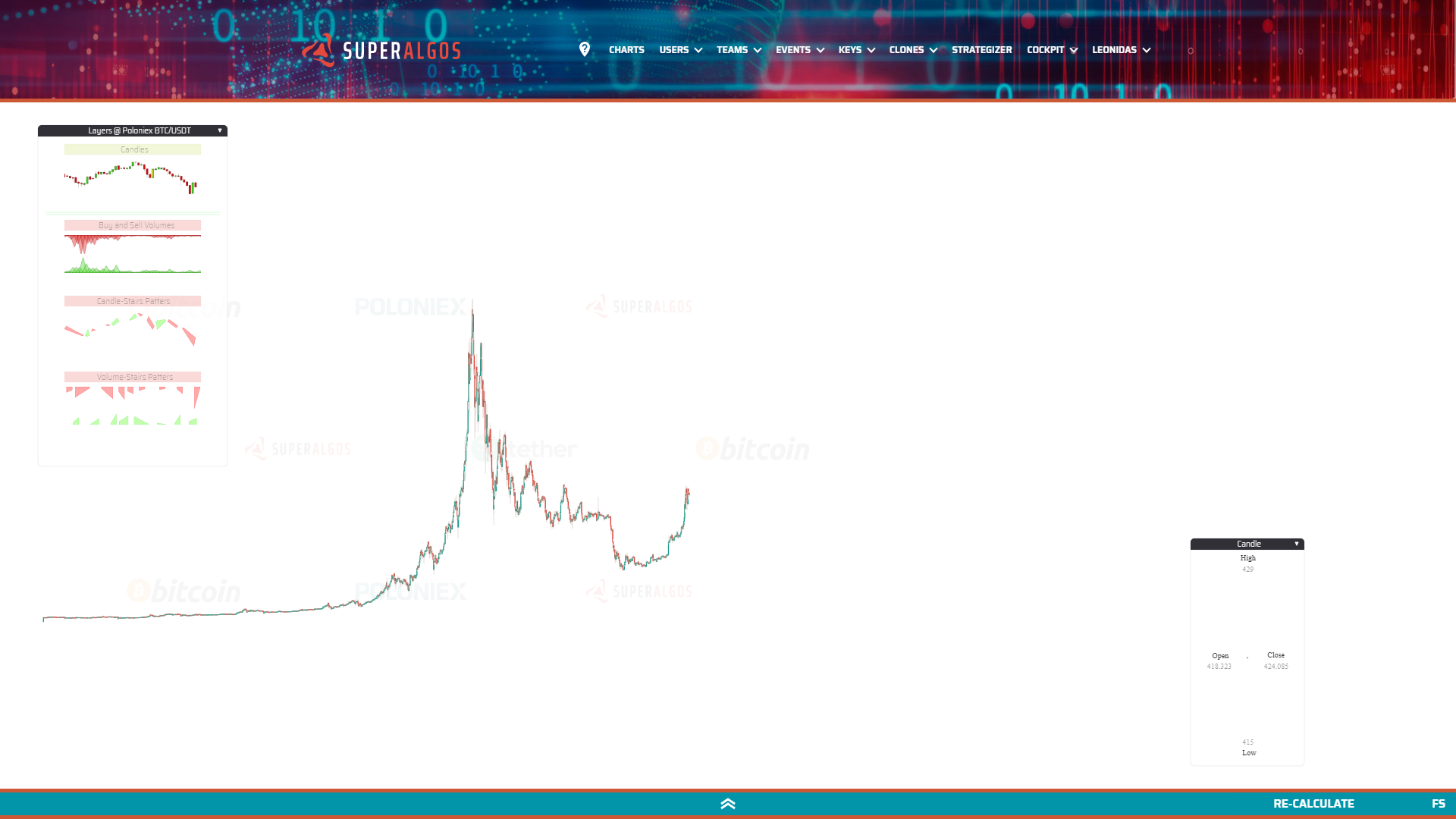
The Charts shows indicators data along with the actions taken by strategies, integrated with market data.
The Superalgos Protocol (also referred to as the protocol) determines the structure in which all the information regarding a trading system is stored and—at the same time—provides clear guidance on how traders using the various tools developed and distributed by the Superalgos Project shall create and automate their strategies.
Charts Interface
Layers Panel
This panel includes different layers you may visualize by toggling them on and off with a single mouse click. The layer title bar can have 3 possible background colors:
- Red: the layer is off.
- Green: the layer is on.
- Yellow: the layer is loading; if it stays yellow, it means it can't load fully.

Main Elements
Notice the following three elements relative to the position of the mouse pointer:
- Above, the current datetime. This is the date and time at the mouse pointer position.
- To the right, the current rate. This is the rate (in this case USDT per BTC) at the mouse pointer position.
- Below, the current time period (or candle size if you wish). This is the currently displayed time period—not only for candles but for any other object plotted across available layers.
Navigation
Using your Mouse
Left-click on the charts and drag to move across the charts.
There are many things you can do with your mouse wheel:
- Scroll over the Layers Panel to access layers that may be out of reach downwards.
- Scroll on top of or next to the datetime to produce a horizontal scaling.
- Scroll on top of or next to the displayed rate to produce a vertical scaling.
- Scroll on top of or next to the time period to change the time period to available values.
- Scroll elsewhere over the chart to zoom in and out. The App will not only zoom in and out of the chart, but also automatically adjust the time period to the most convenient one (for the current zoom level).
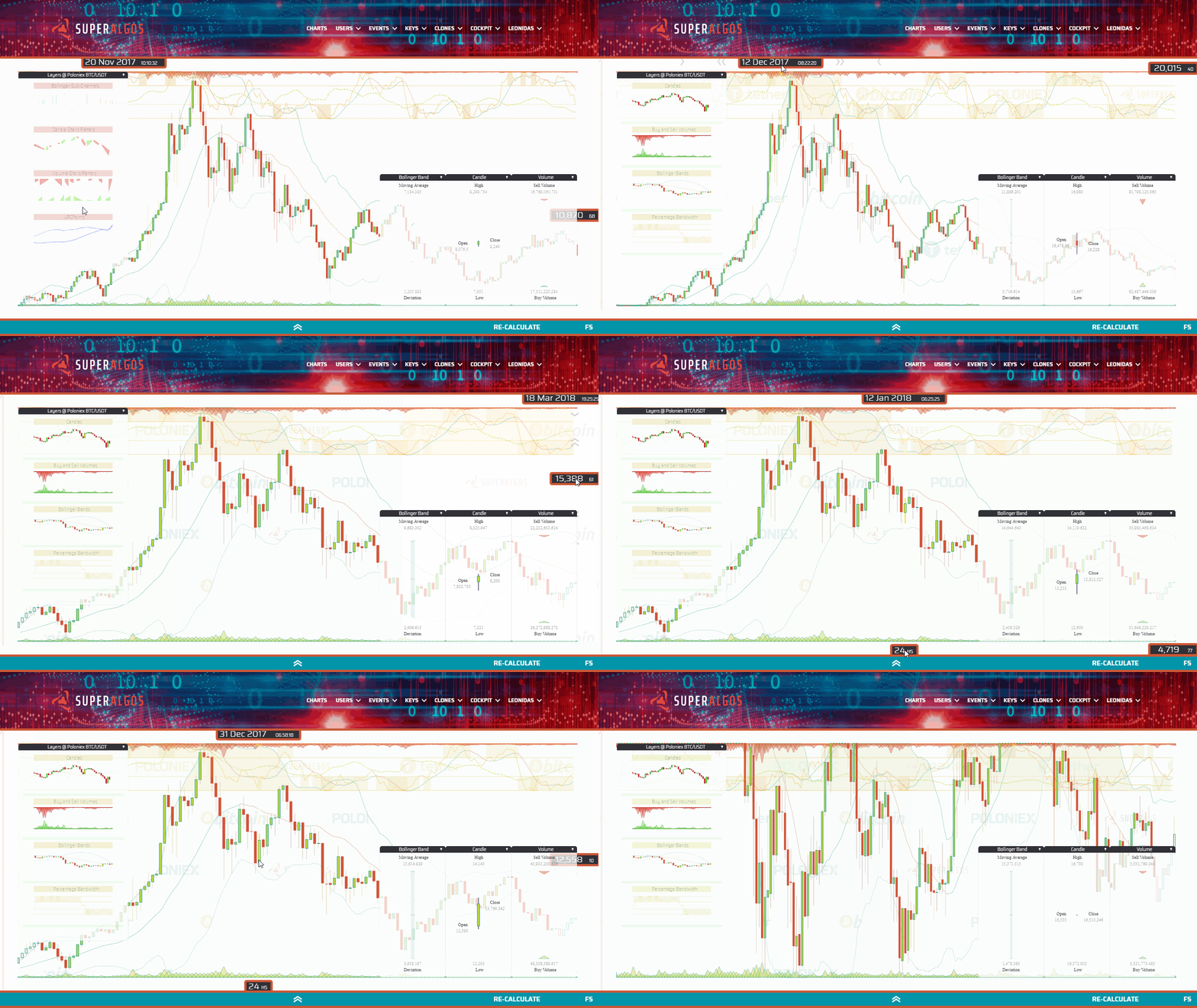
Keyboard Navigation
When on the charts, you may use the following key combinations:
- Shift + ← to pan to the left.
- Shift + → to pan to the right.
- Shift + ↑ to pan upwards.
- Shift + ↓ to pan downwards.
Floating Panels
To minimize a panel, click on the small triangle on the right of its title bar. This will automatically position the panel at the bottom of the screen. Clicking again restores the panel to its previous position.
You may also drag and drop the panels by right-clicking on the title bar.

Layers
The Superalgos Desktop App is an open system, meaning anyone can build layers for the Charts. So far—with our current limited manpower—we have created several indicator layers described below, along with a few simulation and execution Layers described further down this document.
Indicator Layers
Candles
Typical candlesticks.

Volumes
We innovated a bit placing the buy volume at the bottom (in green), and the sell volume at the top (in red).
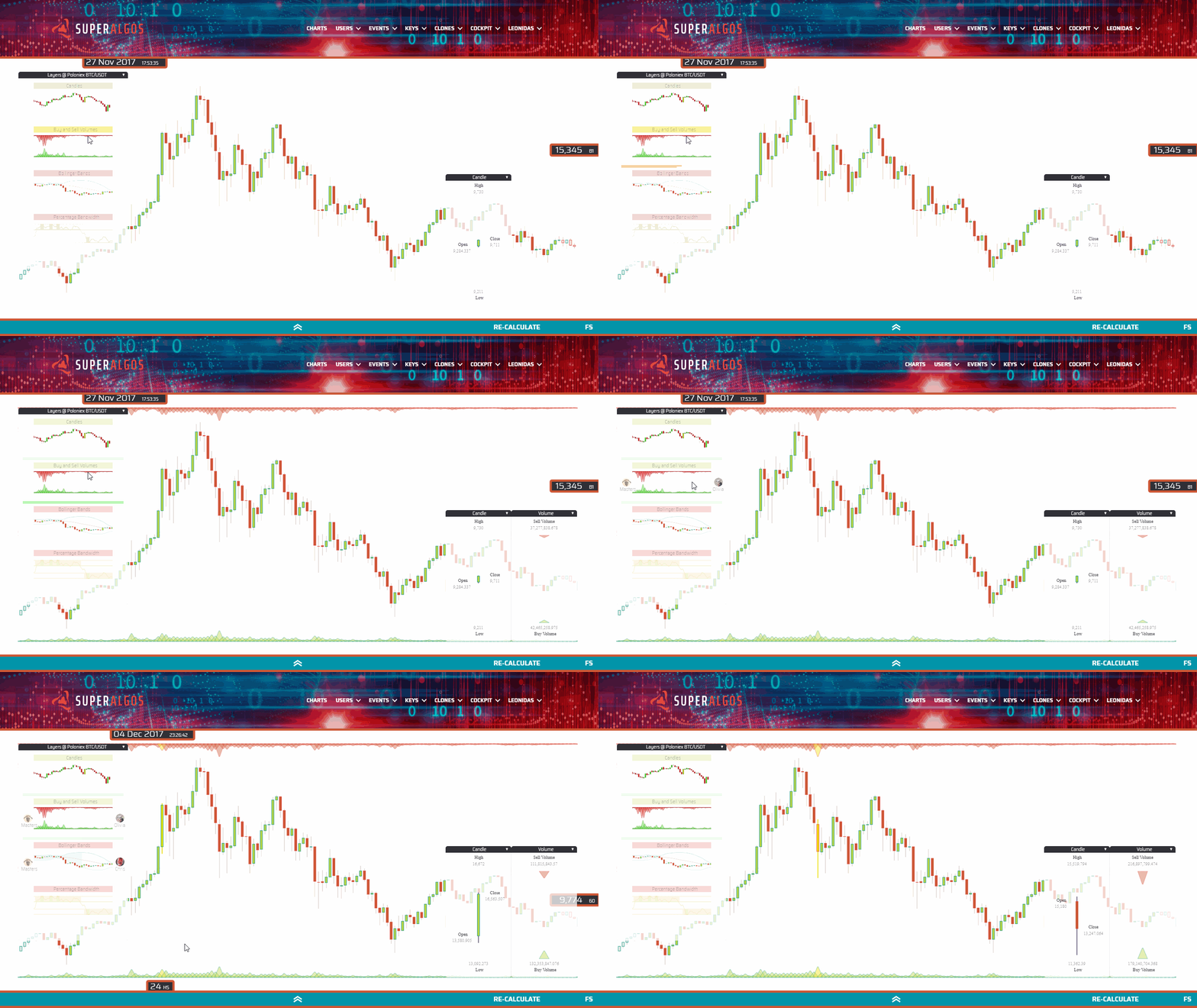
Candle Stairs Patterns
This is an unusual pattern proving any data set may be plotted on the charts (and by extension, that anything can be added to the system). A Stair Pattern is defined as a set of candles going in the same direction, either up or down. You can think of these patterns as "Candle Channels", as they represent channels with an up or down direction based on underlying candles direction.

Volume Stairs Patterns
A similar concept, this time with volumes. Whenever a sequence of volume bars is found where each one is bigger than the previous one, they are bundled together in a "Stair". The same applies when they are going down (the next is smaller than the previous one). For a trading bot, this serves to identify if sell or buy volumes are rising or declining.

Bollinger Bands
This is the traditional Bollinger Bands indicator. Bollinger Bands have a moving average, in our case calculated with the last 20 periods (the line in the middle of the bands). We are plotting the moving average with one color when it is going up, and with a different color when it's going down. The upper band is at 2 Standard Deviations from the moving average, pretty much like the lower band, also at 2 Standard Deviations. These are the most widely used Bollinger Bands settings.

Percentage Bandwidth (%B)
This is a well-known indicator that derives from the Bollinger Bands. In a nutshell, it tells you how close the price is either to the upper band or the lower band at any point in time. When the price is in the middle of the bands (it is calculated with the close value of each candle), then %B is in the middle of its chart, at value 50. When the price touches the upper band, then %B is at 100, and finally when the price is at the lower band, then %B is at 0.
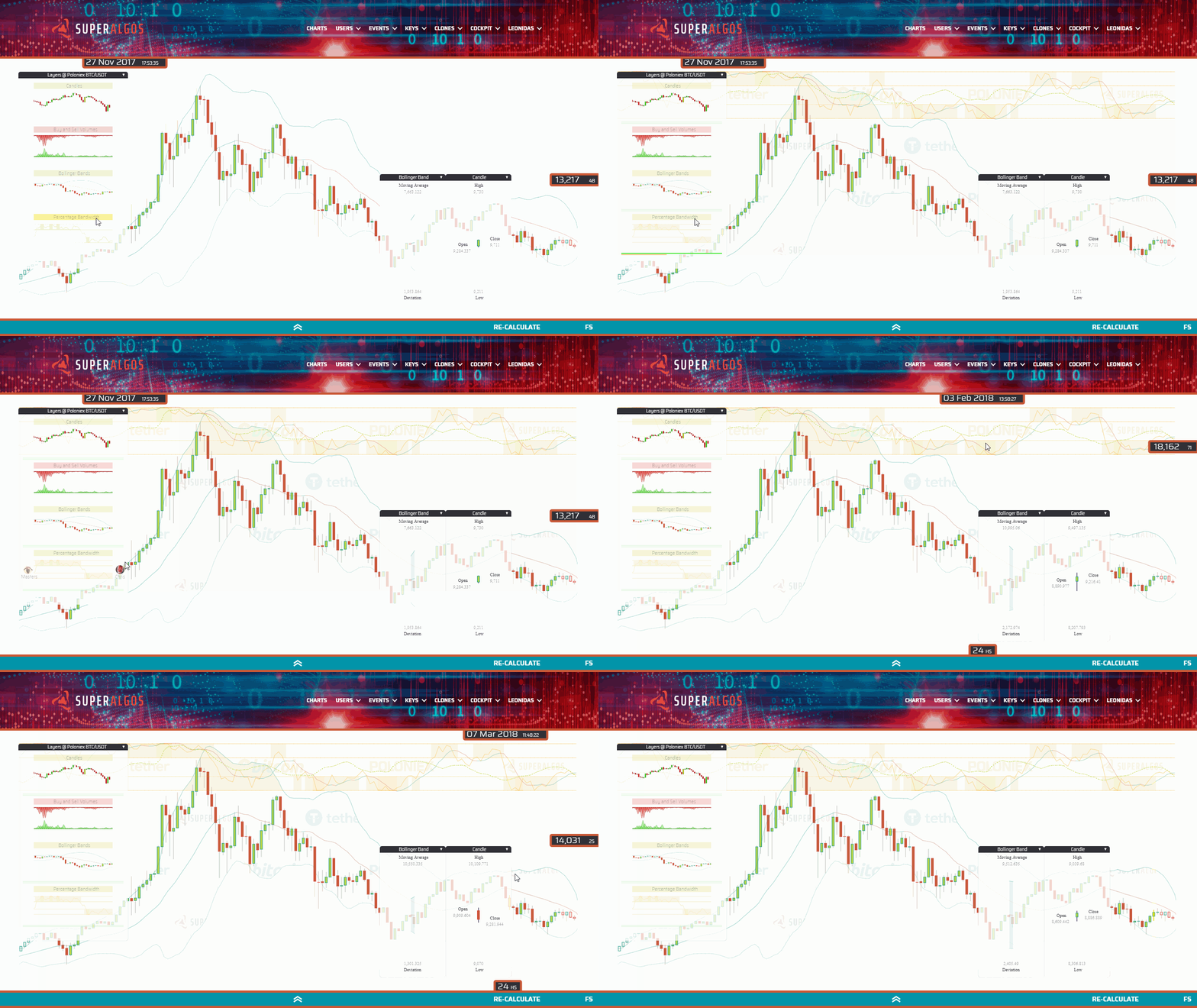
The chart features lines at %B values 30 and 70 since those are the most common values for traders to forecast when a reversal may happen. In our chart, %B is the one represented at #1. We've found useful to add a moving average to smooth volatility a bit and to be able to ask—at any time—if it is going up or down. The moving average calculated with the last 5 %B values is plotted as line #2. Finally, we've also added a property called Bandwidth, which represents the separation of the upper band from the lower band. It is a measure of volatility and is plotted at #3.

Bollinger Channels
This is a non-standard indicator derived from the Bollinger Bands. These types of channels are calculated using the Bollinger Bands moving average. Essentially an upward channel begins when the moving average changes direction from going down to going up, and the channel finishes when it turns from going up to down. A downward channel starts when the Bollinger Band moving average turns from going up to down, and it finishes when it starts going up again. Upward channels are plotted in green, while downward channels in red. Additional information can be found at the indicator's panel, like the number of periods contained at the channel.

Bollinger Sub-Channels
If we consider that one Bollinger Channel can have sub-channels in the same direction (up or down) but different slopes, then we get to the concept of Bollinger Sub-Channels. The most important property of a sub-channel is its slope. The possible values are Side, Gentle, Medium, High and Extreme. With this information, a trading bot could easily ask if it is in a sub-channel with a certain slope and for how many periods. The slope or inclination of the moving average may be an indication of momentum.

Designer
The Designer organizes the workflow to build strategies following the framework implemented by the Superalgos Protocol. If you are not familiar with the protocol, please read either of the following articles:
-
Superalgos Protocol V0.1 - the Short Version, for Experienced Traders.
-
Superalgos Protocol V0.1 - the Long Version, for Beginner Traders.
The Designer features a visual interface in which all elements encompassing strategies and other concepts are represented by icons organized in a hierarchical structure, as defined by the protocol.
The hierarchy starts with a definition, which contains—among other things—a trading system. The trading system contains strategies described in stages.
Elements are bound to each other in a tree-like structure and tend to self-organize across the workspace. Dragging and dropping a sample workspace on the Designer is the fastest way to get started with the Superalgos Desktop App.

Workspace

The workspace is a concept that refers to all the information available in the Designer, including:
- Definitions, which are the top level of each hierarchy (you may have multiple definitions in your workspace).
- Processes, trading systems, their strategies, and their configurations, which are child elements of definitions.
- The position and status of all elements within the Designer, even those which are disconnected from the hierarchy.
You may think of the workspace as your desktop. It is not part of the hierarchical structure of information that describes your definitions. Instead, it contains definitions.
Backing up your workspace is the best way to store trading systems, ready to be deployed. Your workspace is saved at the browser level every time you make a change, but still, you should back up your workspace once in a while so that you can go back to past versions.
Definitions

Definitions include every single parameter describing your trading systems, as well as your personal data (including API Keys), and the management of processes running in the background.
Pretty much like with every other element in the hierarchy, you may back up your definitions using the backup button on the definition's menu.
A definition is the top-level element in the hierarchy, with three children elements: Trading System, Personal Data and Network. We will briefly discuss the trading system and leave the other two for later.
Trading System

A trading system is a collection of strategies that conform to certain parameters.
TEMPORAL LIMITATION: At present, only one trading system is allowed at a time per each definition. If you wish to have more than one trading system, then you will create a new definition to hold the new trading system.
The one parameter that needs to be defined early on is the base asset, that is, the asset you wish to stand on when you are out of the market, with no open positions. We will review the rest of the trading system parameters later on.
| Parameters | Base Asset |
|---|---|
 |
 |
Your Base Asset formula contains the following piece of code, which you may configure to your own needs:
{
"name": "USDT",
"initialBalance": 10,
"minimumBalance": 1,
"maximumBalance": 20000
}
| Variable | Description / Possible Values |
|---|---|
| name | USDT or BTC |
| initialBalance | the amount of capital you wish to allocate to the whole trading system. |
| minimumBalance | when your overall balance combined (balanceAssetA + balanceAssetB) reaches this value, all trading stops; think of this a general safety switch. |
| maximumBalance | a similar concept as the minimumBalance, but on the higher side of the initialBalance. |
Before discussing Working with Strategies, let's review a few basic aspects of the Designer's Interface.
Interface
Navigation
Left-click on the black background and drag to move around the workspace.
You may also use the following key combinations on your keyboard:
- Ctrl + ← to pan to the left.
- Ctrl + → to pan to the right.
- Ctrl + ↑ to pan upwards.
- Ctrl + ↓ to pan downwards.
For Mac users, replace Ctrl with Command
Element's Menu
Hovering the mouse pointer over elements causes a menu to pop up.

The following menu options are tools that will help you manipulate the arrangement of elements, overriding the physics that affect their default floating nature.
| Icon | Status / Action |
|---|---|
 |
The element is pinned on a specific X-Y coordinate on the workspace. |
 |
The element is free, not pinned. |
 |
The element's connections with its parent and children are frozen. Connecting lines are blue. If you freeze your definition, then the whole hierarchy is frozen. |
 |
The element's connections are unfrozen. |
 |
The element is locked to a rotational symmetry in relation to the rest of the elements at the same level of the hierarchy, thus all angles between elements are equal. The connection lines are orange. |
 |
The element is not locked in a rotational symmetry; instead, angles are free. The connection lines are yellow. |
 |
Clicking the minus button contracts the branch of child elements. |
|
Clicking the plus button expands the branch of child elements. |
The rest of the menu options available in most elements are the following:
| Icon | Action |
|---|---|
 |
Backup: Backs up the element along with all its children, including sensitive information such as API keys (in case of the Workspace and Personal Data elements), by downloading to the user's machine a JSON file containing the element's description. |
 |
Delete: Deletes the element and all its children. A confirmation is required (an additional click). |
 |
Share: Downloads a JSON file—in a similar manner as with the Backup operation—with one big difference: no personal information is included in the description of the element, so that the file may be freely shared. |
Detachment and Attachment of Elements
Elements in the workspace may be detached from its parent, carrying all children with it. When an element is detached, it is no longer taken into account in simulations or live trading, as it no longer belongs to the definition. This feature enables testing of different parameters, keeping alternatives handy in the same workspace.

To detach an element, right-click on it and drag it away from the parent element. To attach an element, right-click on it and move it closer to the element you wish to attach it to.
Note
: Elements may not be detached or attached to frozen elements. You need to unfreeze them before attaching or detaching.
Elements may be attached only to conceptually related parents. For instance, a condition may be attached to a situation, but it can not be attached to a formula.
Element Shortcuts
You may define shortcuts for frequently-used elements with the following procedure:
- Hover the mouse pointer over the target element until the menu opens up.
- Click Ctrl + your preferred key to assign the shortcut.
- A sign will appear below the element confirming the assignation of the shortcut.
Note
: For Mac users, replace Ctrl with Command
Repeat the same procedure to remove a shortcut.
Working with Strategies

As the Superalgos Protocol indicates, the definition of strategies is done in stages: Trigger > Open > Manage > Close. We will review each stage, one by one, but let's first discuss the common elements among them.
Becoming familiar with the Superalgos Protocol will significantly increase your understanding of how to build strategies, so we highly recommend reading either of the following articles:
-
Superalgos Protocol V0.1 - the Short Version, for Experienced Traders.
-
Superalgos Protocol V0.1 - the Long Version, for Beginner Traders.
The Designer provides a graphic user interface (GUI) for traders to input the rules and formulas that determine the behavior of strategies. Traders need to define the rules to trigger on and trigger off each strategy, to take a position, to manage take profit targets and stops.
Situations and Conditions
| Situations | Conditions | Code |
|---|---|---|
 |
 |
 |
The protocol calls these sets of rules situations, in the sense that you are trying to determine what is going on with the market and, if the 'situation' is right, certain actions or events should be triggered.
In other words, you define situations in which you wish a certain event to happen (i.e.: trigger on the strategy, take a position, etc.) and each situation is described as a set of conditions that need to be met for the event to be triggered.

The type of statements you will use to define conditions need to evaluate to true or false.
When all conditions within a situation evaluate true, then the situation evaluates true. This means that multiple conditions within a situation are evaluated with the AND operator (e.g. condition 1 AND condition 2 AND condition 3 are either true or false; that is, if one condition is false, then the situation is false).
On the other hand, when a certain event has multiple situations, then situations are evaluated with the OR operator (e.g. if either situation 1 OR situation 2 are true, then the event will be triggered.
This set up of conditions and situations allows taking the same kind of action (trigger a certain event) upon the occurrence of different desirable scenarios, each described by one situation.
Put in other words, events may be triggered in different circumstances, meaning that you are free to define different situations upon which the event would be triggered. In such a case, when any of the situations evaluate true, then the event shall be triggered.
Comparison and Logical Operators
To define conditions you will use statements using any of the available variables that describe what is happening with the market. Remember, conditions need to evaluate either true or false.
To create such statements you will use comparison and logical operators:
| Operator | Description |
|---|---|
| === | equal value and equal type |
| != | not equal |
| > | greater than |
| < | less than |
| >= | greater than or equal to |
| <= | less than or equal to |
| && | and |
| ∣∣ | or |
For example:
Situation 1
- Condition A: candle.close > bollingerBand.MovingAverage
- Condition B: candle.previous.max > bollingerBand.MovingAverage
In the example above, conditions A and B are comparison statements that may evaluate either true or false. In the case both would evaluate true then Situation 1 would be true as well.
Situation 2
- Condition C: candle.max <= 2000 && candle.min >= 1000
In the example above, condition C would be true if the whole candle falls within the range between 1000 and 2000. If this is true, then situation 2 is true as well, as there is only one condition to check.
Starting a Strategy from Scratch
In addition to the explanations available here, a comprehensive video tutorial for building strategies is available on our YouTube channel. The video is slightly outdated in the following aspects:
- it doesn't take transaction fees into account when running simulations;
- the Superalgos Desktop App (the client version of the Platform) does not feature a menu on top;
- simulations are no longer run clicking a button on the horizontal bar.
Otherwise, the logic for building strategies as described in the video is still valid.
Strategies within a specific trading system respond to the parameters set for the corresponding trading system. This means they all have the same base asset, and they all share the initialCapital (see Trading System for further references).
To start a brand new strategy, go to the Trading System element and click Add Strategy on the menu. Several icons will pop up on the screen. As you work on each stage (Trigger > Open > Manage > Close), you may need to add the missing items corresponding to certain elements.

Let's review the minimum requirements for having a working strategy:
Trigger Stage

| Icon | Element | Description |
|---|---|---|
 |
Trigger-On Event | Determines under which situations/conditions the strategy is triggered on (at least one situation with one condition). |
 |
Trigger-Off Event | Determines under which situations/conditions the strategy is triggered off (at least one situation with one condition). |
 |
Take Position Event | Determines under which situations/conditions the position is taken (at least one situation with one condition). |
Open Stage

| Icon | Element | Description |
|---|---|---|
 |
Position Size | A formula, determines how much capital is put in each trade. The formula may be a constant (a fixed numerical value) or may relate to relevant available variables. The resulting value should not be higher than your available balance (balanceAssetA if you stand on BTC and balanceAssetB if you stand on USDT). e.g.: assetBalanceB puts all your available balance in each trade, in case your base asset is USDT. |
 |
Position Rate | A formula, at this point, not taken into account during live trading. We recommend you use candle.close in your formula until the Execution Engine allows users more control over execution (learn more about current Execution Limitations). |
In addition to Position Rate and Position Size, you also need to define the initial values for your Stop and Take Profit. The initial value is set as a formula on Phase 0 (refer to the Superalgos Protocol articles for an explanation on managing Stop and Take Profit in phases).
| Icon | Element | Description |
|---|---|---|
  |
Stop, Phase 0 | A formula, determines your initial Stop value. A likely scenario is relating your initial stop to the positionRate (the price at which the position was taken). e.g.: positionRate - positionRate * 0.02 sets your initial stop at 2% below the price at which you take the position. |
 |
Take Profit, Phase 0 | A formula, determines your initial Take Profit value. Again, you may choose to relate your initial take profit to the positionRate or any other available variable. |
Using an Existing Strategy
Thanks to the implementation of the Superalgos Protocol, all strategies built within the Superalgos Desktop App are portable. This means that people may use strategies built by other people or groups of people.
You may import any element—formulas, conditions, situations, phases, stages, complete strategies, complete trading systems, and even complete workspaces—simply by dragging and dropping them on the workspace.

Working with Multiple Strategies
When you have more than one strategy under the same trading system, all strategies share the parameters defined at the trading system level. This means that all strategies will work with the same base asset and share the same initialCapital.
As a consequence, strategies within a trading system may never be triggered on at the same time. Under such a setting, when a strategy is triggered on, it blocks the triggering of the rest of the strategies within the trading system until the strategy is triggered off.
If you wish to have multiple strategies that work independently of each other, then you need to place them on different trading systems. At this point, the app supports only one trading system per definition. As a result, if you wish to have multiple independent strategies, then you need to have multiple definitions, each with one trading system. Learn how to do that in the Working with Multiple Definitions section.
Available Variables
Candles
candle.min: The minimum price of the last closed candle (low).
candle.max: The maximum price of the last closed candle (high).
candle.open: The price at which the last closed candle opened.
candle.close: The price at which the last closed candle closed.
candle.direction:
"Down": candle.close < candle.open (bearish candle)"Up": candle.close > candle.open (bullish candle)"Side": candle.close = candle.open (neutral candle)
candle.previous: This refers to the previous candle. You may use candle.previous to fetch any of the variables of the previous candle (i.e.: candle.previous.close). You may also use as many .previous modifiers as required to fetch values of more than one period behind the current one (i.e.: candle.previous.previous.max returns the maximum value of two candles before the current one).
Previous Property: The .previous property is a property common to all indicators. You may use the property on each of the indicators in a similar way.
Bollinger Bands
bollingerBand.movingAverage: The value of the current moving average (20 periods).
bollingerBand.standardDeviation: The value of current the standard deviation.
bollingerBand.deviation: bollingerBand.standardDeviation * 2
bollingerBand.direction:
"Down": bollingerBand.previous.movingAverage > bollingerBand.movingAverage"Up": bollingerBand.previous.movingAverage < bollingerBand.movingAverage"Side": bollingerBand.previous.movingAverage = bollingerBand.movingAverage)
bollingerBand.previous: Use .previous like with candles (see candle.previous above).
Learn more about the Bollinger Band
Percentage Bandwidth
percentageBandwidth.value: A numeric value between 0 and 100; the current value of the percentage bandwidth.
percentageBandwidth.movingAverage: A numeric value between 0 and 100; the current value of the percentage bandwidth moving average.
percentageBandwidth.bandwidth: A numeric value between 0 and 100; the current bandwidth.
percentageBandwidth.direction:
"Down": percentageBandwidth.previous.movingAverage > percentageBandwidth.movingAverage"Up": percentageBandwidth.previous.movingAverage < percentageBandwidth.movingAverage"Side": percentageBandwidth.previous.movingAverage = percentageBandwidth.movingAverage)
percentageBandwidth.previous: Use the .previous property like with candles (see candle.previous above).
Bollinger Channels
bollingerChannel.direction: Possible values are "Down", "Up", and "Side".
bollingerChannel.period: The number of periods the channel spans at the moment the variable is being read. For instance, if a channel spans 10 candles and the variable is checked on the fourth candle, then bollingerChannel.period = 4. Put in other words, it is the current span of the channel.
Bollinger SubChannels
bollingerSubChannel.direction: Possible values are "Down", "Up", and "Side".
bollingerSubChannel.period: The number of periods the subchannel spans at the moment the variable is being read. For instance, if a subchannel spans 10 candles and the variable is checked on the fourth candle, then bollingerChannel.period = 4. Put in other words, it is the current span of the subchannel.
bollingerSubChannel.slope: Indicates how steep the slope of the subchannel is. Possible values are "Side", "Gentle", "Medium", "Steep", "Extreme" (in order from lowest to highest).
Internal
strategyStage: Possible values are "No Stage", "Trigger Stage", "Open Stage", "Manage Stage", and "Close Stage".
stopLoss: The value of your Stop in the active phase.
stopLossPhase: The number of the active Stop phase (0, 1, 2, ...).
takeProfit: The value of the Take Profit in the active phase.
takeProfitPhase: The number of the active Stop phase (0, 1, 2, ...).
positionRate: The price at which the position was taken.
positionSize: The size of the position.
balanceAssetA: Your BTC balance.
balanceAssetB: Your USDT balance.
lastTradeProfitLoss: The P&L value for the latest completed trade (roundtrip).
lastTradeROI: The ROI of your latest trade.
profit: The total P&L during the current execution period.
roundtrips: The total number of trades in the current execution.
fails: The number of trades resulting in losses in the current execution.
hits: The number of trades resulting in profits in the current execution.
periods: The number of candles evaluated in the current execution.
positionPeriods: The number of candles in the current open position.
positionDays: The number of days in the current open position.
distanceToLast.triggerOn: The number of periods between the last Trigger On and the current candle.
distanceToLast.triggerOff: The number of periods between the last Trigger Off and the current candle.
distanceToLast.takePosition: The number of periods between the last Take Position and the current candle.
distanceToLast.closePosition: The number of periods between the last Close Position and the current candle.
Conditions and Formulas with Data from Different Time Periods
When building your conditions and formulas, you may want to include analysis concerning a different time period than the one in which you intend to run your simulation and live-trading.
The variables explained above, written as described, always refer to the time period on which the simulation or live-trading is running. To refer to other time periods, you need to use a mechanism built-in the app, implementing the following syntax:
chart.at + time period + . + your variable
For example:
chart.at04hs.candle.close > chart.at04hs.candle.previous.close
The above statement compares the current 4 hours candle to the previous 4 hours candle, no matter what time period you are simulating in.
| Time Period | Syntax |
|---|---|
| 1 min | chart.at01min. |
| 2 min | chart.at02min. |
| 3 min | chart.at03min. |
| 4 min | chart.at04min. |
| 5 min | chart.at05min. |
| 10 min | chart.at10min. |
| 15 min | chart.at15min. |
| 20 min | chart.at20min. |
| 30 min | chart.at30min. |
| 40 min | chart.at40min. |
| 45 min | chart.at45min. |
| 1 h | chart.at01hs. |
| 2 hs | chart.at02hs. |
| 3 hs | chart.at03hs. |
| 4 hs | chart.at04hs. |
| 6 hs | chart.at06hs. |
| 8 hs | chart.at08hs. |
| 12 hs | chart.at12hs. |
| 24 hs | chart.at24hs. |
TECHNICAL LIMITATION: When you are simulating and live-trading on time periods in the order of minutes (below 1 hour), you may access any other time period variables, as explained above. However, when you are simulating or live-trading in time periods of 1 hour and above, you may only access data of time periods of 1 hour and above.
Managing Processes
Before discussing the various forms of strategy testing and live trading available, it is important to explain the basic aspects of how those and other processes work.
Network
| Network | Network Node |
|---|---|
 |
 |
At the moment, the app manages data sets locally. However, in the future, it will also source data and services from a peer-to-peer network of nodes that will provide those services.
For the time being, all you need to know is that the network is one of the direct child elements of a definition and that the one node in the network is where you will manage the processes that run in your local machine.
Task Manager, Tasks, Bots and Processes
| Task Manager | Task | Sensor | Indicator | Trading Engine | Process |
|---|---|---|---|---|---|
|
 |
 |
 |
 |
 |
A task manager is an entity that controls any number of tasks, and tasks are used to control bots, which in turn may run any number of processes.
In other words, a task manager starts and stops tasks, and tasks are the devices you will use to start and stop bots.
Each bot may perform more than one job, thus, they may run one or more processes. Bots and processes are preconfigured so that you don't need to worry about their technical intricacies.
All you need to do is the basic operation: starting and stopping them via the corresponding tasks whenever you need them.
There currently are three kinds of bots that you will run to provide you with the data and functions you need:
- Sensors: they extract raw data from the exchange;
- Indicators: they process data to produce more elaborate datasets;
- Trading Engine: it is the bot that reads a Superalgos Protocol file containing the details of trading strategies and interacts with the Superalgos Desktop App to run them as simulations (using a simulation plotter) or to trade live.
NOTE: Remember all of these elements (Network, Network Node, Task Manager, Tasks and Bots) are part of your definition. If you do not use one of the Quick-Start Examples workspaces supplied with the release, you will need to create all of these elements on your own, starting from the definition menu. It is unlikely that you will be able to do this properly, so we highly recommend you use one of the supplied templates.
All workspaces in the Quick-Start-Examples folder include the Superalgos Network and a network node with two task managers. Each task manager has a name, which becomes visible only upon hovering the mouse pointer:
-
Keep Datasets Up-to-Date: This task manager has several tasks, each controlling one of the bots required to keep the datasets in your machine up to date, including both sensors and indicators. If you wish to have the data up-to-date, you need to Start All Tasks using the menu. This is also a pre-requisite for trading live, doing paper-trading and forward testing.
-
Tests & Live Trading: This is the task manager you will use to run the trading engine so that you can set up your backtesting, paper-trading, forward testing and live testing sessions. In our templates, you will always find at least two tasks, so that you may run live-trading sessions isolated from your tests. This means that you will run one instance of the trading engine for live-trading and any number of instances of the trading engine for your testing sessions.
[ILLUSTRATION]
PRO TIP: The Getting Started Guide instructed you to start all tasks on both of these task managers. However, once you become familiar with the app, you may want to start only individual tasks according to your specific needs.
Testing and Simulations
| Backtesting | Paper-Trading |
|---|---|
 |
 |
A simulation is a visual representation over the charts of any of the forms of strategy testing available within the app:
- Backtesting: testing over historic data;
- Paper-trading: testing over a live data feed, without placing orders at the exchange (orders are simulated);
- Forward testing: testing over a live data feed, placing actual orders at the exchange for a fraction of the available balance.
We will cover forward testing when we discuss live trading. For the time being, we will focus on the first two steps of the strategy testing process.
As explained in the previous chapter, the trading engine is the bot that handles testing sessions and is controlled by a task and its corresponding task manager.
To run a testing session, you will set up the session under a process of the trading engine and click Run on its menu.
[ILLUSTRATION]
For your convenience, all our templates in the Quick-Start-Examples folder come with at least one backtesting and one paper-trading session set up. All you need to do is customize the parameters to your liking and, if you wish, add or remove layers to the layer manager, both child elements of each testing session.
[ILLUSTRATION]
Parameters
| Parameters |
|---|
|
Each testing session has its own set of parameters. This allows you to configure different trading sessions with different parameters, and go back and forth between them as required. For instance, you may have different backtesting sessions with different date ranges, different exchange fees or different slippage settings.
If any of these parameters are missing from the configuration of the testing session, the app's fallback mechanism will look for the parameters at the trading system level and use those settings instead.
We covered the Base Asset parameter when explaining trading systems. Let's now review the rest.
Exchange Fees
Fees are a crucial part of the game. A strategy may work like a charm when you leave fees out of the equation but would lead you to bankruptcy in a live trading situation.
Simulations take fees into account when the following piece of code is present and properly configured in your Fee Structure parameter:
| Fee Structure |
|---|
 |
{
"maker": 0.15,
"taker": 0.25
}
The above configuration corresponds to standard Poloniex maker and taker fees. Remember, for the time being, all orders placed by the Execution Engine are market orders, thus, the taker fee applies in all cases.
To illustrate how fees affect your bottom line, take a look at the image below.
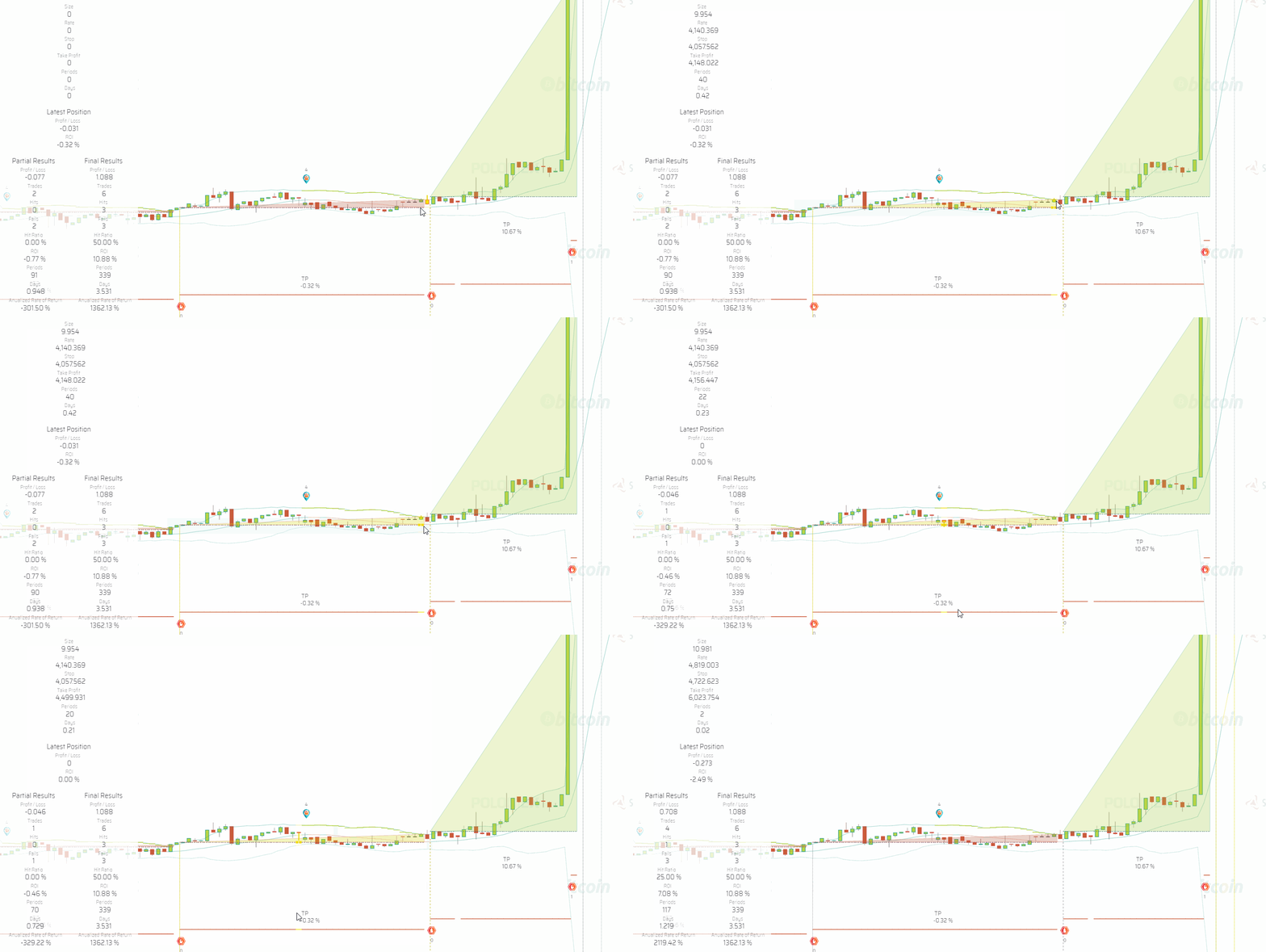
The trade hits the take profit target above the Position Rate level, however, due to fees, the trade has a negative 0.32% ROI.
NOTE: If the Fee Structure parameter is left empty or disconnected both from your testing session and your Trading System, fees will not be computed during simulations.
Slippage
Slippage is another issue you need to be aware of to more realistically evaluate a strategy. The price at which the exchange will fill the order placed by the Execution Engine is seldom going to match the conditions of the simulation.
To account for slippage during simulations, you may enter slippage values for the three different occasions in which the Execution Engine will place orders: Take Position, Take Profit and Stop.
| Slippage |
|---|
 |
Simulations take slippage into account when the following piece of code is present and properly configured in your Slippage parameter:
{
"positionRate": 0.1,
"stopLoss": 0.2,
"takeProfit": 0.3
}
The number you enter is applied as a percentage of the price of the order and added or subtracted from the price depending on the circumstances, always working against you. For instance, "positionRate": 0.1 means the position will be set at a price 0.1% higher if you stand on USDT or lower if you stand in BTC.
The result of slippage in simulations is taken into account by the graphic representation of each trade created by the Simulation Trades layer.
NOTE: If the Slippage parameter is left empty or disconnected both from your testing session and your Trading System, slippage will not be computed during simulations.
Datetime Range
| Datetime Range |
|---|
 |
The Datetime Range parameter is used to control the period of time in which the simulation will be calculated.
1. Backtesting:
You will set an initialDatetime and a finalDatetime:
{
"initialDatetime": "2019-09-01T00:00:00.000Z",
"finalDatetime": "2019-09-25T00:00:00.000Z"
}
If you do not set an initialDatetime the app's fallback mechanism will try to get it from the parameters at the level of the trading system. In case there is no initialDatetime, the calculation will start at the current position of the charts.
If you don't set a finalDatetime at the level of the testing session or the trading system, then calculations will run until the present time.
2. Paper-trading:
Paper trading sessions only require a finalDatetime. If you do not set one either at the level of the session or the trading system then the session will run for one year.
{
"finalDatetime": "2020-09-25T00:00:00.000Z"
}
Time Period
| Time Period |
|---|
 |
Testing sessions run in the time period specified in this parameter.
Available options at the sub-hour level are:
01-min
02-min
03-min
04-min
05-min
10-min
15-min
20-min
30-min
45-min
Available options at larger time periods are:
01-hs
02-hs
03-hs
04-hs
06-hs
08-hs
12-hs
24-hs
Simulation Layers
| Layer Manager |
|---|
 |
The layer manager allows you to determine which visualization layers will be available at the Layers Panel to plot the results of testing sessions over the charts.
Back on the charts, the following layers plot strategies' actions over the market data, providing a comprehensive set of visual clues showing how strategies would behave when trading.
Simulation
The Simulation layer displays the actions of strategies throughout the tested period. Actions include the take position event and the management of stop and take profit in phases. By activating the Simulation layer you should be able to see something like this:

Notice Asset Balances in the bottom left corner of the screen. Asset A represents BTC while Asset B represents USDT.
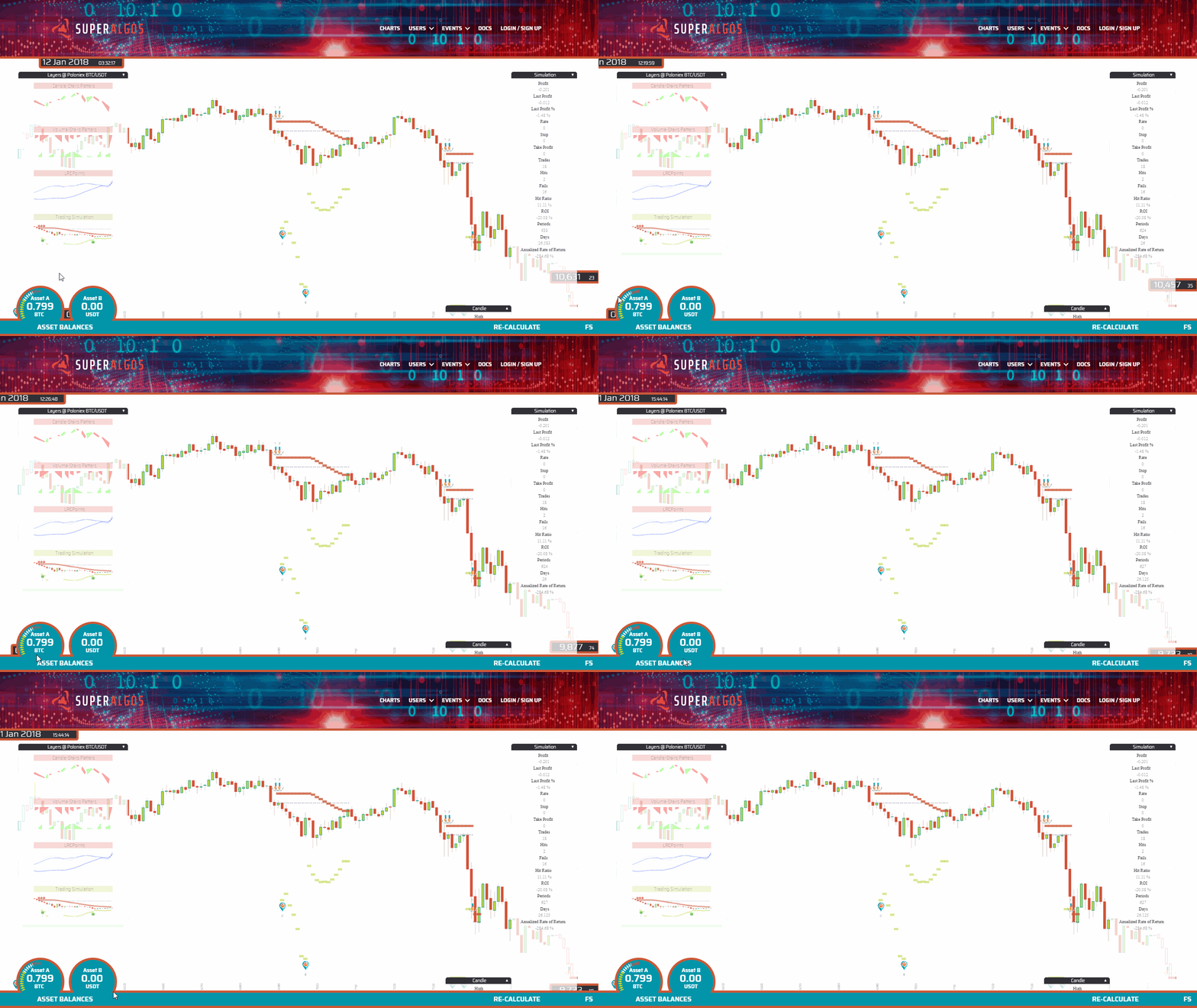
NOTE: For the time being, asset balances displayed on-screen correspond to the Simulation layer that was turned on last.
The dashed line represents the duration of the trade at the price of the take position event. Notice how one asset is exchanged for the other asset at the take position event, and exchanged back as the trade closes.

Notice the green horizontal lines indicating the take profit value for each period (candle). Take profit is managed in phases, marked with the corresponding icons.

Notice the red horizontal lines indicating the stop value for each period (candle). Stop is managed in phases marked with the corresponding icons.

Formulas and Conditions
The Formulas and Conditions layer helps identify which conditions are met at each candle. Notice how conditions are highlighted as the mouse pointer moves through different candles.

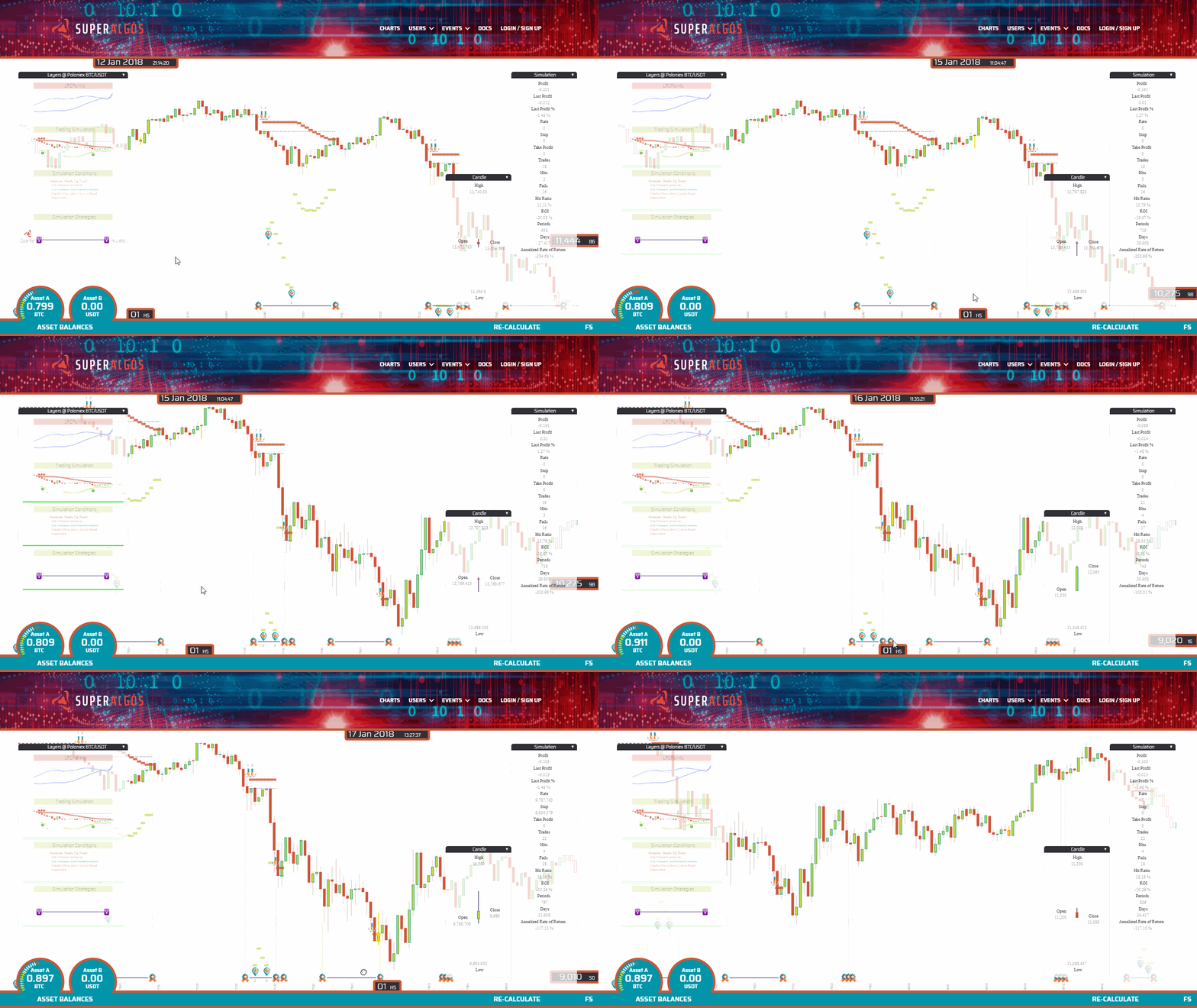
Strategies
The Strategies layer identifies trigger on and trigger off events, signaling the activation and deactivation of strategies.
Trades
The Trades layer marks trades with a triangle whose hypotenuse connects the price at the take position event with the exit price. When the trade is profitable, the triangle is green; when the exit happens at a loss, the triangle is red.

Advanced Backtesting
The app allows for having multiple testing sessions. You may add and work with multiple sessions by backing up the existing session at the level of the process. Then drop the backup on the workspace, attach it to the trading engine and give the new session a new name.
The number of backtesting sessions you may run simultaneously is capped by your machine's capacity. Current tests indicate that a dual-core processor at 2.4GHz may process up to 5 sessions at the same time without compromising the machine's performance.
Running more sessions than the optimal number your machine may process efficiently may result in the sessions taking more time to process than if they were run in a sequence.
[ILLUSTRATION]
Testing Logic Variations
Being able to run multiple backtesting sessions allows you to speed up the strategy tuning stage.
For instance, you may want to check how different variations of a condition in the take position event affect the results. To tests all variations at the same time, you would:
- Replicate a backtesting session backing up the corresponding process element (along with its children) and dropping the backup on your workspace, as many times as you require, attaching it to an available trading engine.
[ILLUSTRATION]
- Rename each backtesting session with a significant name that is related to the different variations of the condition you wish to test.
[ILLUSTRATION]
- Set up the first variation of the condition and run the corresponding backtesting session. Replace the first variation with the second one, and launch the second backtesting session. Repeat as many times as desired.
Testing on Non-Linear Date Ranges
It is a known fact that testing and optimizing a strategy over a complete data set may lead to data-mining or overfitting.
Being able to set up multiple backtesting operations allows you to segment your data set as you may consider appropriate, for instance, creating sessions to test only on odd months, every three or six months, or in a more random-like arrangement.
The system provides enough flexibility to accommodate different backtesting criteria and styles. It is up to you how to set it up.
Forward Testing and Live Trading
Once you are happy with your strategy after extensive backtesting and paper-trading sessions, running it as a fully automated bot to trade live is quite simple. Truth be told, your strategy running as a simulation is pretty much a trading bot already—only that orders don't go to the exchange.
| Forward Testing | Live Trading |
|---|---|
 |
 |
It is recommended to forward test your strategy before committing serious capital to live-trading. Forward testing is usually the final testing phase before going live. It involves placing orders at the exchange for a fraction of the capital that you intend to use when trading live, and that is actually the only difference between a forward testing session and a live trading session.
Forward testing sessions and live trading sessions need to be configured under their corresponding tasks, pretty much like was explained for backtesting and paper-trading sessions, with a few minor nuances:
1. Datetime Range
Like with paper trading sessions, you only require a finalDatetime. If you do not set one either at the level of the session or the trading system then the session will run for one year.
{
"finalDatetime": "2020-12-31T23:59:99.999Z"
}
The Exchange Rate and Slippage parameters do not affect forward testing or live trading. However, those parameters are taken into account when creating simulation layers, which are also available during forward-testing and live-trading.
2. Forward Testing Session Configuration
In the case of forward testing you will want to configure what is the percentage of your balance that you wish to use for testing. You do this by clicking the Edit Session option on the session's menu and entering the desired value in the code snippet:
{"balancePercentage": 1}
[ILLUSTRATION]
The number you enter is applied as a percentage of balanceAssetA or balanceAssetB (for BTC and USDT-based strategies respectively) to obtain the forward-testing balance that will be available to the positionSize formula you defined on the Open Stage of the strategy.
For instance, "balancePercentage": 1 means that 1% of your balance will be made available.
Let's draw a quick example:
Your base asset is USDT and your initialBalance is USDT 10,000.
If you set up your forward-testing session with "balancePercentage": 1, then USDT 10,000 * 1% = USDT 100. This is the balance that will be available to your forward-testing session.
NOTE: You need to take this into account at the time of defining your positionSize formula. If the formula is a constant, you may easily run out of balance, as only a fraction of the balance will be available for the strategy to use. It may be a good idea to set up your positionSize as a function of your available balance instead.
Just like the balance is scaled down, the minimumBalance and maximumBalance are also scaled down accordingly.
Getting Started
The following topics cover information that is common both to forward testing and live trading sessions.
All you need to do to start forward-testing or live-trading is:
-
Go to your definition and click Add Personal Data on the menu. In the new Personal Data element, click Add Exchange Account. In the Exchange Account element, click Add Asset and Add Key.
-
Get your API Key from the exchange (see instructions for Poloniex).
-
Enter the public key and secret in the Account Key element: simply replace the New Key title with the public key, and enter the secret as the Key Value.

-
Make sure the following elements are present in your strategy. If they are not, simply add them: go to the Open Stage element and select Add Open Execution on the menu; do the same with the Close Stage, adding Close Execution). No need to configure anything, simply make sure the elements are there).
| Icon | Element | Stage |
|---|---|---|
 |
Open Execution | Open Stage |
|
Close Execution | Close Stage |
- Go to the forward testing or live trading session and click Run on the menu.
WARNING: The Superalgos Desktop App is at a very early stage of development. As such, errors may occur at any point, including errors that can cause you to lose money. You are responsible for taking all precautions before starting trading live. Make sure you test with small amounts of money, the kind you can afford losing. Also, make sure you understand the Execution Limitations. Trade live at your own risk.
Live Trading Process
As soon as you click Run, your bot will be forward testing or trading live. What happens is that you are still running a simulation—thus all the simulation layers keep plotting the same kind of information over the Charts.
The difference is that orders will now go to the exchange.
For maximum efficiency, we recommend you run live trading sessions on the 01-min time period. Your bot will then be executed every 60 seconds to evaluate your strategy rules and decide if any action needs to be taken. This is important even if your strategy operates at a lower frequency, as running the live session at the 01-min time period guarantees that the engine will exit trades as soon as the last one-minute candle tags your stop or take profit target. On the contrary, if you run the live trading session at a time period higher than 01-min, slippage may be considerably greater.
For the above recommendation to be viable, then all of your conditions and formulas will need to be explicit in referencing the time period. Let's clarify what this means.
Let's assume you wish to trade live with the Weak-hands buster strategy, which operates mostly at the one hour time period.
The first condition of the trigger on event is:
chart.at01hs.candle.previous.max > chart.at01hs.bollingerBand.previous.movingAverage + chart.at01hs.bollingerBand.previous.deviation
The use of chart.at01hs. makes explicit that the candle to check is the one at the 01-hs time period, as explained in the chapter Conditions and Formulas with Data from Different Time Periods.
This makes the trading engine check the 01-hs time period, even if the bot is running every minute.
If, on the contrary, the condition was candle.previous.max > bollingerBand.previous.movingAverage + bollingerBand.previous.deviation then the trading engine would be checking the candles at the 01-min chart, which is not what is intended.
NOTE: All strategies offered as examples in the
Quick-Start-Examplesfolder are now set up according to the above criteria.
Live Trading History Layer
In addition to the simulation layers, you will now be able to use the Live Trading History layer to get information about your trades.

The layer plots tiny orange circles to indicate the precise point in time and price of each execution of the bot.
When a buy order is successfully placed and filled at the exchange, a green triangle pointing upwards is drawn on the screen. The lower tip of the triangle signals the point in time and rate of the order.
When a sell order fills, a red triangle is plotted over the charts.
TEMPORARY LIMITATION: When live-trading, the simulation layers do not currently reflect the actual live trades, but the simulated ones.
Execution Limitations
At the current stage of development, users have no control whatsoever over the execution of orders.
The way execution works at this stage is quite basic: once conditions are met for taking a position, or once a take profit or stop target is hit, one single market order is placed at the exchange.
When taking a position, the Take Position price shown in simulations is defined by the formula you use in your Open Stage > Position Rate > Formula.

However, this is overridden during live-trading, and replaced with a market order.
When taking profit or hitting a stop, that is, when attempting to close a position, the price in simulations is determined by the intersection of the corresponding candle with the values resulting from the active take profit and stop phases formulas.
However, during live-trading, once a take profit or stop target is hit, the order to close the trade is placed as a market order.
Let's quickly review one of the implications these limitations may have, with an example:

The image above, featuring 10-minutes candles, shows a sudden drop in price. As you may see, there where only three executions of the trading engine during the price drop.
Had there been a stop somewhere in the range of the sudden price drop, chances are that the price would trigger the stop in-between executions. This means that the engine would place the sell order some time after the price hit the stop, and the order would fill at a price lower than intended.
An additional limitation is that there currently is no feature to break up orders, therefore, the size of your orders and the likeliness of them getting filled depend on the liquidity of the market/exchange.
It is important that you fully understand the implications of these limitations if you are considering to trade live with the app at this stage, as you will need to adapt to the current state of affairs.
Multiple Forward-Testing or Live-Trading Sessions within the Same Definition
If for some reason you wish to run more than one forward-testing or live-trading session from within the same definition, you need to know that—due to restrictions on API use imposed by exchanges—you may not use the same API Key from different processes.
This means that you will need to create a different API Key for each session you wish to run. You will create the keys as explained in the Getting Started section above.
However, to let the app know which API Key you wish to use in each session, you will move the corresponding API Key from the Personal Data branch to the parameters of the session. Simply detach the API Key element from the Exchange Account element and re-attach it to the session's parameters.
[ILLUSTRATION]
NOTE: If you don't specify which API Key to use at the session level, the app's fallback mechanism will look for an API Key at the level of the Personal Data element. If more than one forward-testing or live-trading session ends up using the same API Key, you should expect errors to occur.
Poloniex API Keys
This is how you create an API Key in Poloniex:
Go to the tools menu and select API KEYS...
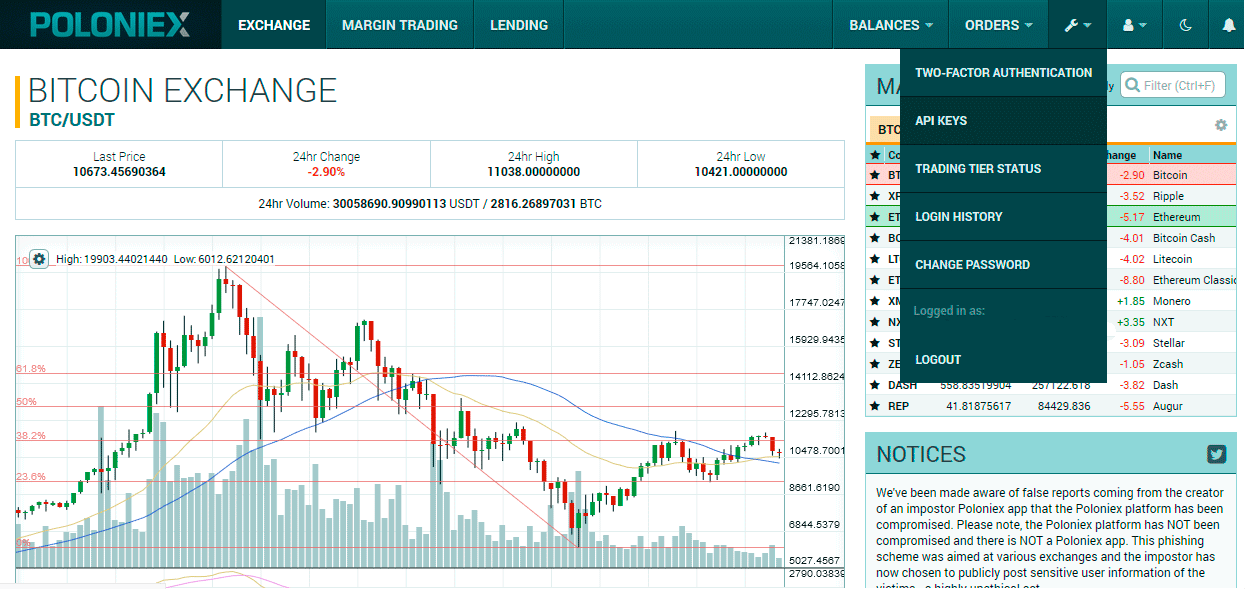
If you have never used the API before, chances are it is disabled at the exchange. So before actually creating an API Key, you will need to enable them...

You will need to follow the validation process involving checking your email and confirming your choice. Once that is taken care of, go back to the tools menu and click API KEY again. You should now see a screen offering to create a new key...

Once you create your key, the system will present it as follows...
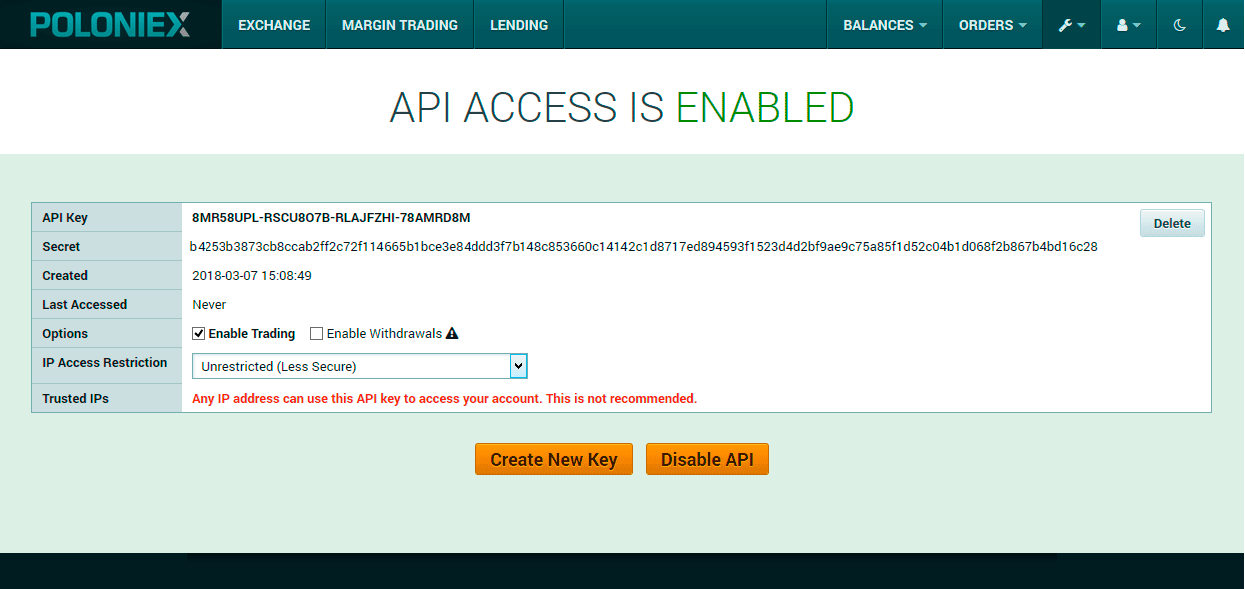
Make sure you DO NOT enable withdrawals nor IP access restrictions.
Copy the secret to use it in the Superalgos Desktop App. Once you leave this screen, recovering your secret requires an email validation process.
Advanced Use
This section covers app features that power users may find useful.
Working with Multiple Definitions
For the time being, the app does not allow having multiple trading systems under the same definition, however, you may have more than one definition in your workspace.
This is actually what is required to be able to trade live with multiple trading systems at the same time from within a single instance of the app, in a single machine.
You would usually work with each definition on separate workspaces. If you wish to bring one of your definitions to a workspace in which you already have a working definition, you just need to back up the target definition and drop the resulting file on your target workspace.
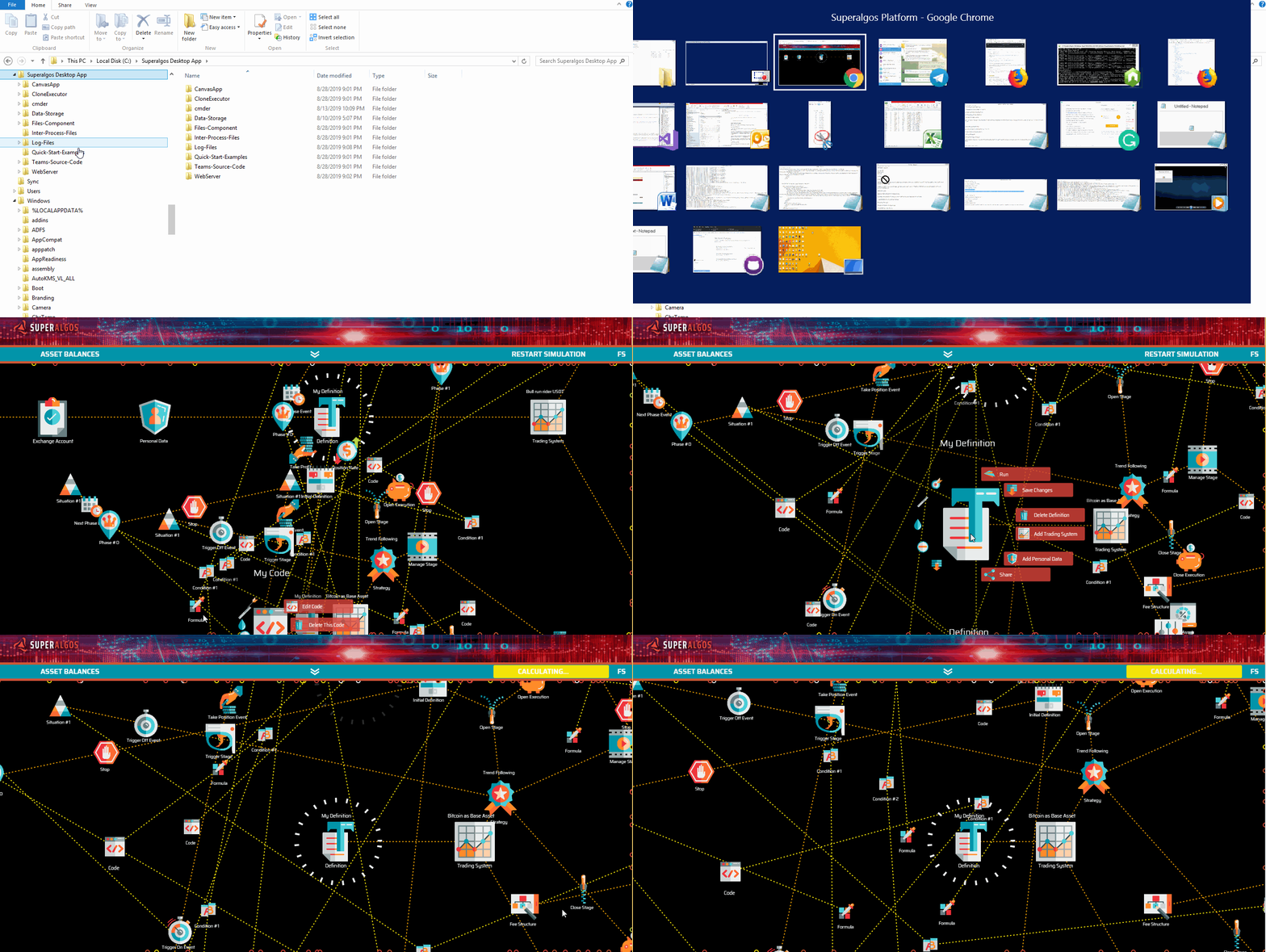
The two definitions work independently from each other, from within the same workspace. To trade live with both definitions at the same time, make sure you have a different API Keys configured in each definition, and run one live trading session on each of the definitions.
Troubleshooting
On-screen Errors and Warnings
It may happen that your simulation or live trading is not working as expected. The first thing to do in such case is look around within your workspace. Errors are signaled with a red circle surrounding the relevant element of the workspace. Hoover the mouse pointer over the element and you should get a description of what may be that is causing the unexpected behavior.

Bear in mind that when the split tab is fully closed, errors will no longer show up in the Designer, as shown in the below video:

Market Data / Indicators Seem to be Outdated
If you are running the app for the first time or you stopped running the app for some time, data will not be up to date. Every time you start the app, it will take some time for data to catch up with the present time.
To update your datasets until the present time, you need to Run All Tasks in your Keep Datasets Up-to-Date task manager, as explained on the Task Manager, Tasks, Bots and Processes section, and allow enough time for the processes to go through the missing data.
[ILLUSTRATION]
Reporting Bugs
We highly appreciate bug reports. This is what you need to do:
-
Make sure you are running the latest release and that you have upgraded to the latest patch. You may find information about releases and patches in the releases page. If you are not running the latest patch, please upgrade and test your issue again before reporting anything.
-
Go to the Issues page in this repository and take a moment to search for similar existing open issues. If you find someone has the same issue as you, you may find helpful to follow the thread and comment if you have any new information about the issue.
-
If there are no similar issues, then open a new one. Do your best to describe the problem as thoroughly as possible.
Developers will be interested in knowing how to reproduce the issue in their own systems, so please describe the process that leads to the issue as clearly as possible. Capturing a GIF video showing the steps that lead to the issue would be of great help! LICEcap is a lightweight, simple app that can help you with that. If developers can reproduce the issue, half of the problem is solved already.
If the issue seems to happen under specific conditions, you might want to share your Definitions with developers. To do this, go to the Definitions element in your workspace and select Share in the menu. A file containing your strategy and other parameters, but NOT your API keys, will download to your browser's download folder. Upload this file to the issue only if you feel comfortable with sharing it openly. If not, then wait for developers to contact you.
Please make sure you enable Github notifications when someone responds to the issue, as developers may want to ask questions.
If the issue happens while using the app at the browser, then please include a screen capture of Chrome's Console. Open DevTools with the F12 key (when the browser is in focus) and click the Console tab, then go back and reproduce the issue. Take a screen capture of the Console and paste it along with your report.
Feel free to also include screen captures of the app itself if there is anything relevant you wish to show to developers.
Technical Overview
The Superalgos Desktop App is the client implementation of the Superalgos Platform—a larger system that will eventually include the implementation of a peer-top-peer network hosting a Collective Trading Intelligence.
The App is built out of three main components: AAWeb, CanvasApp, and CloneExecutor.
These Node.js components provide the infrastructure required to run different kinds of algorithms or bots:
-
Sensors: extract raw trades data from exchanges and store it in a standardized format in the form of a JSON file.
-
Indicators: process the output of sensors and other indicators to produce more elaborate data sets.
-
Plotters: create visual representations of data sets to render the information in a human-friendly manner, most likely over the charts.
-
Trading Engine: read a Superalgos Protocol file containing the details of trading strategies and interact with the Superalgos Desktop App to run them as simulations (using a simulation plotter) or to trade live.
How Algorithms Work
Bots mission is—in essence—creating products that others can consume. To do this, they run processes which produce and store data sets.
Each bot may have several processes, and processes don't necessarily have a one-to-one relationship with products. That is, a product can be the result of the work of one or more processes.
Bot processes run when called by the corresponding task and stop when they finish the task at hand, to wake up again after the interval defined in the bot's configuration file.
The data sets processes create are the actual output of bots which are stored in the file system. But processes also produce and store a second valuable piece of information: status reports.
Status reports serve as temporal annotations that bots read every time they are called by the app to know what was done in the previous run and what the state of affairs is at present. Status reports are dynamic, and they change constantly, with updates after every single run of the associated process.
Dependencies
We established that bots produce products for others to consume. This others include other algorithms, meaning that bots usually depend on the data sets produced by other bots. We call these data dependencies, which are declared on each bot configuration file.
Bots consume their own status report and they might as well consume status reports from other algorithms. We call these status dependencies, which are too declared in each bot configuration file.
Types of Data Sets
At this point, there are five different types of data sets: market files, daily files, minutes files, single file, and file sequence. These types of data sets define the structure of the data and how it is stored.
A market file contains data spanning the whole existence of the market, that is, from the day the pair (e.g. USDT-BTC) started trading up to the present time. The data is stored in one single file, which is appended every time the process runs generating new data.
A daily file contains data segmented by day. That is, the process generates one file per day and stores it in the deepest level of a folder tree structure of the following type: Year > Month > Day.
A minutes file contains data corresponding to one single minute and is stored in the deepest level of a folder tree structure of the following type: Year > Month > Day > Hour > Minute.
A file sequence consists of sequential information that is not necessarily structured on any particular timeframe. The process stores two types of files: the one ending in .Sequence.json contains the number of files in the sequence, and the sequence is formed by multiple files ending in a sequential number (e.g. 15.json). A single file is pretty much just that: a data set that is stored in one file only.
Current Bots Dependencies
Let's put all this in perspective by analyzing the processes, products, and dependencies of a few existing bots.
Charly
Charly is a sensor. As his README explains, he gets both historic and live trades data from exchanges and assures consistency using recursive processes before storing it in a highly fragmented and usable data set.
Charly offers one product which is defined by the data set scope and various characteristics. Charly has three different processes: Live-Trades, Historic-Trades, and Hole-Fixing. These three processes combined generate the one single data set that constitutes Charly's single product.
The data set is stored under the minutes file structure.
Bruce
Now, let's see what Bruce, an indicator, does with Charly's product. As you can learn from Bruce's README, he produces two data sets: candles at 1-minute resolution and volumes at 1-minute resolution. The data sets are stored under the daily file type of data set.
Now scroll down the README file and see what Bruce's dependencies are. That's right! Bruce depends on Charly's product. Bruce's processes take the trades data that Charly extracted from the exchange, performs calculations to build 1-minute candles and stores his data set with more elaborate data.
In other words, Bruce is adding value to Charly's product and offering a new value-added product of his own. But the value-adding chain does not stop there...
Olivia
Let's take a look at another indicator, Olivia. According to her README, Olivia offers four different products: candles at sub-hour resolutions, candles in resolutions above one hour, volumes in sub-hour resolutions and volumes in resolutions above one hour. And guess what? Indeed, Olivia uses Bruce's 1-minute candles and 1-minute volumes to produce complementary candles and volumes at different resolutions.
Tom
Tom uses candles from Bruce and Olivia to produce the candle-stairs pattern data set described in the Candle Stairs Patterns layer.
Chris
Chris uses Olivia's candles to produce the Bollinger Bands indicator.
Paula
Paula uses Chris' Bollinger Bands data set to build the Bollinger Channel indicator.
Jason
The last link in the chain usually comes in the form of user strategies handled by the trading engine—Jason—consuming data from indicators to make trading decisions.
Of course, the main goal of a strategy is to perform profitable trading. However, notice that Jason has outputs too:
-
Trading-Simulation, Simulation-Strategies, Simulation-Trades, and Simulation-Conditions, are data sets that the Trading Simulation Plotter reads to create a visual representation of strategies' actions over the charts.
-
Live Trading History, Trading-Execution and Trading-Process are data sets used to render live-trading activity over the charts.
Outputs
Each of these bots produces an output in the form of JSON files, which are stored under the \Data-Storage\aamasters\AAMasters folder, sorted by bot.
Sensors and Indicators Output
The route for writting bot's output is built as follows:
Bot Name and version > the version of AACloud (an internal platform component) > the version of the data set > Output folder
e.g.:
\AAOlivia.1.0\AACloud.1.1\Poloniex\dataSet.V1\Output
The format in which bots store their output is standardized. In an attempt to make data highly accessible, a tree-like folder structure is built following this pattern (which may slightly differ from bot to bot, depending on the specific data set):
Data Set Name > Process Name > Time Period > Year > Month > Day > Hour
e.g.:
\Candles\Multi-Period-Daily\01-min\2019\08\15
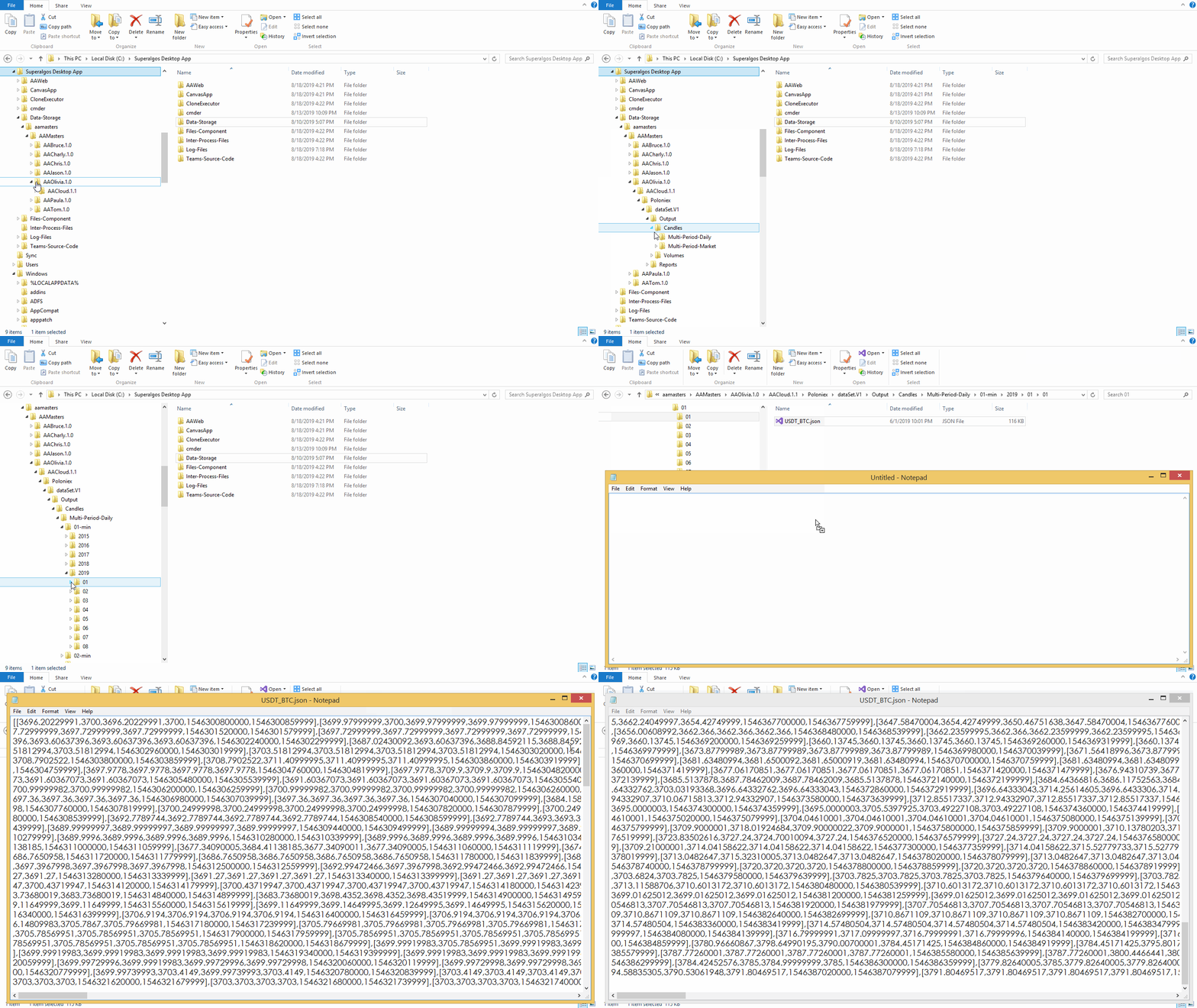
Trading Engine Output
The trading engine is a particular case, as it stores data from multiple simulation and live-trading sessions, including sessions from different definitions and even workspaces.
To do this efficiently, the trading engine creates folders for storing the output and status reports of each session, naming each folder after the session ID, which is unique across definitions.
If for some reason you wish to change the name of an output folder for something easier to read, you may include the following snipet under the Edit Session option in the menu of the corresponding session:
"folderName":"YourName"
You custom name will be displayed along with the session ID in the name of the folder, in the following format:
YourName - 3e139ae2-138c-42ac-99d6-e0cf9c7c6ee6
If you wish to know which ID corresponds to a certain session without defining a custom name, you may obtain it by clicking Ctrl + . while hovering the mouse pointer over the target session element.
[ILLUSTRATION]
NOTE: Replace Ctrl with Command in Mac systems.
Status Reports
In addition to outputting a data set, bots also store a Status Report. These reports keep crucial information that allows the same and other bots to know what happened in the previous execution.
Status reports are stored in the Reports folder, at the same level in the structure as the Output folder.

NOTE: The same considerations as explained for the Trading Engine Output apply for trading engine storage of status reports.
Logs
Each bot keeps its own set of log files, stored under a similar folder structure as bot's Output and Reports. The difference is that the Log-Files folder is at the root level of the release folder, instead of being inside Data-Storage:
\Log-Files\AAMasters\AAMasters
Log files contain detailed information about each execution of the bot. As such, a new folder is created for each execution, labeled with the exact DateTime.
Each folder may contain more than one file. Lighter files tend to include data about the initialization stage, while heavier files usually feature the data corresponding to the actual work the bot does.
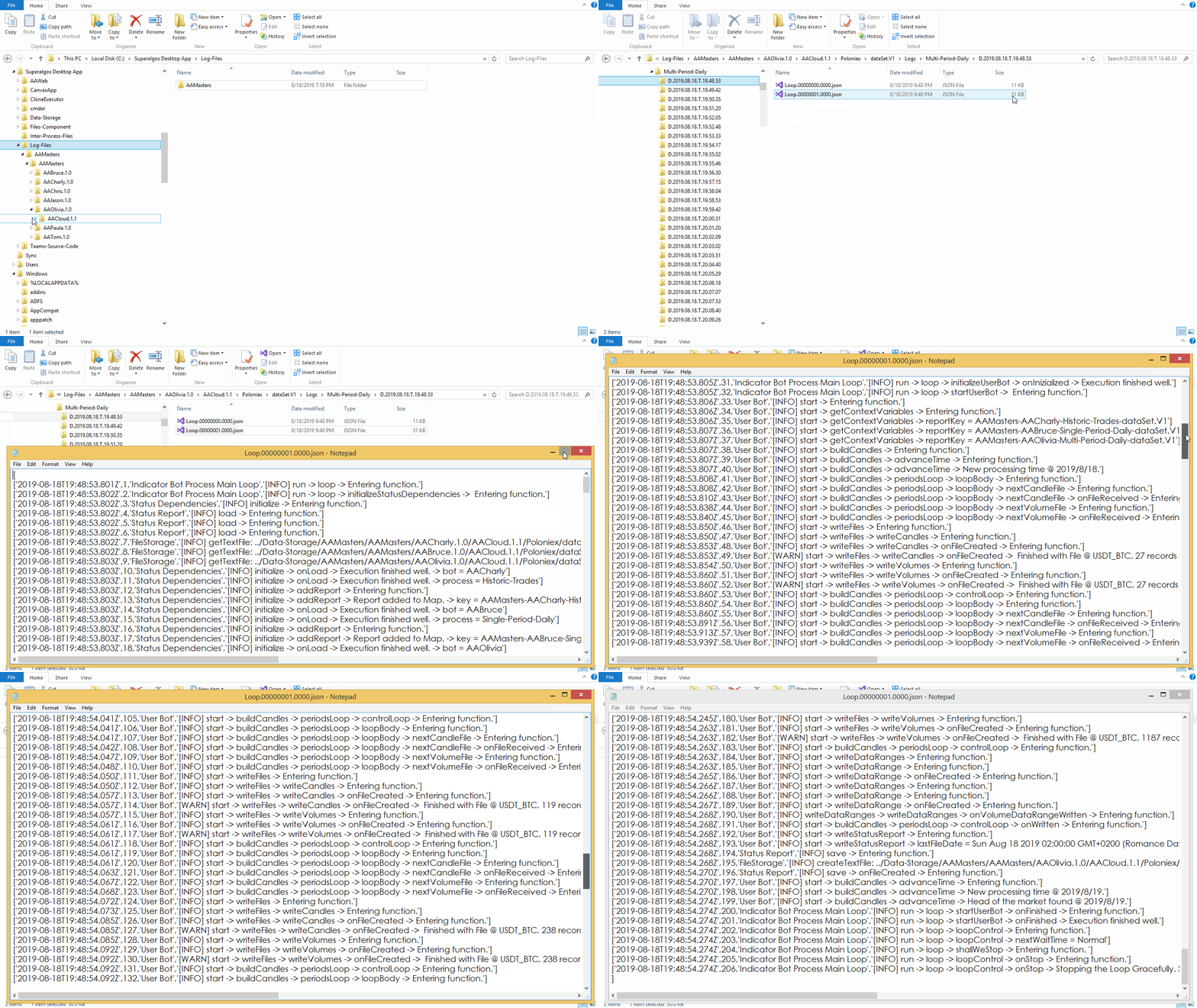
NOTE: The same considerations as explained for the Trading Engine Output apply for trading engine storage of logs.