
Welcome to the Canvas App
The Canvas App is the built-in charting system of Superalgos. It is the software capable of running the Plotters that represent datasets graphically.
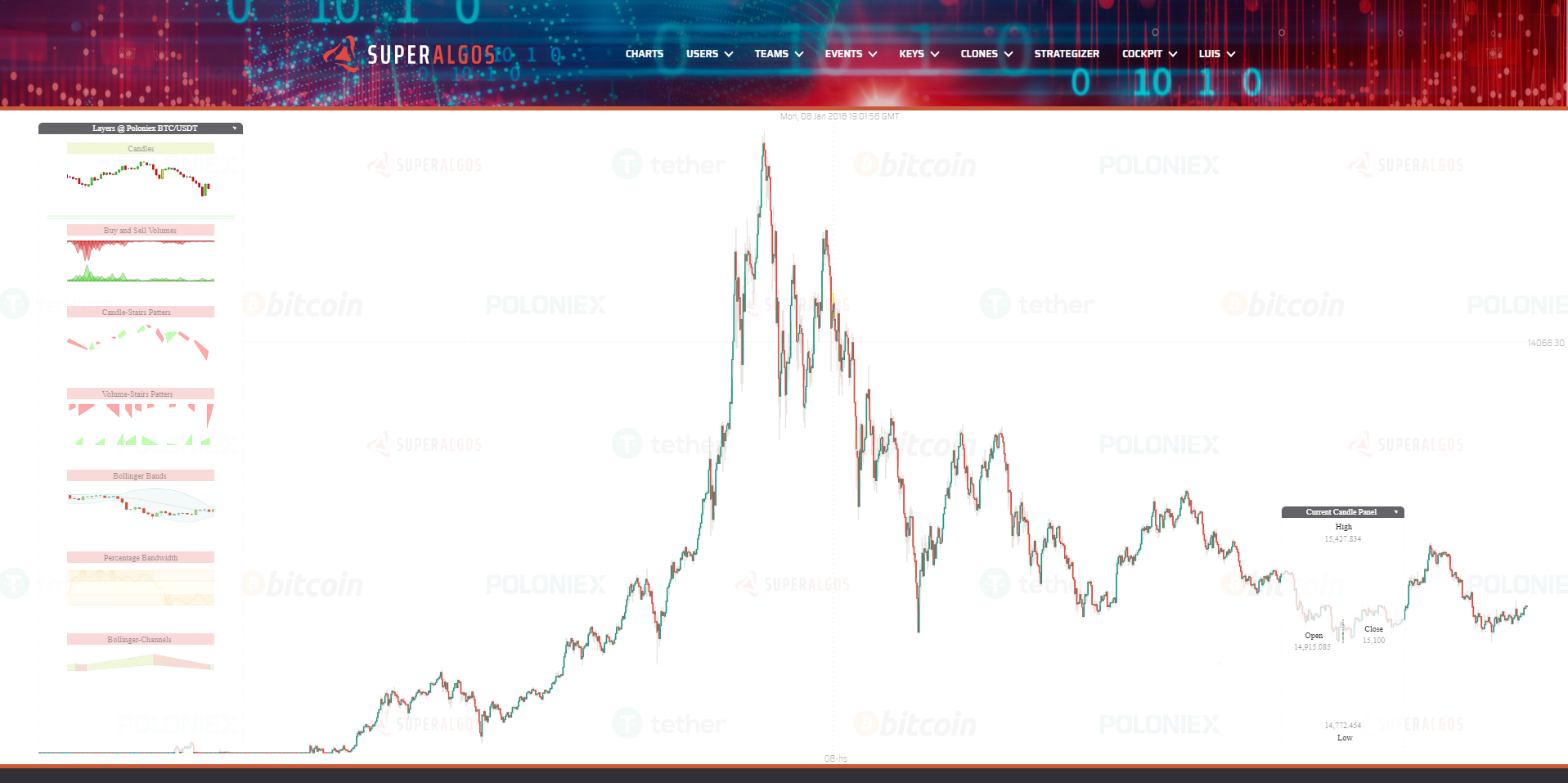
Installation
To install the Canvas App, you need to install AAWeb, following this guide:
https://github.com/Superalgos/AAWeb/blob/develop/README.md
Usage
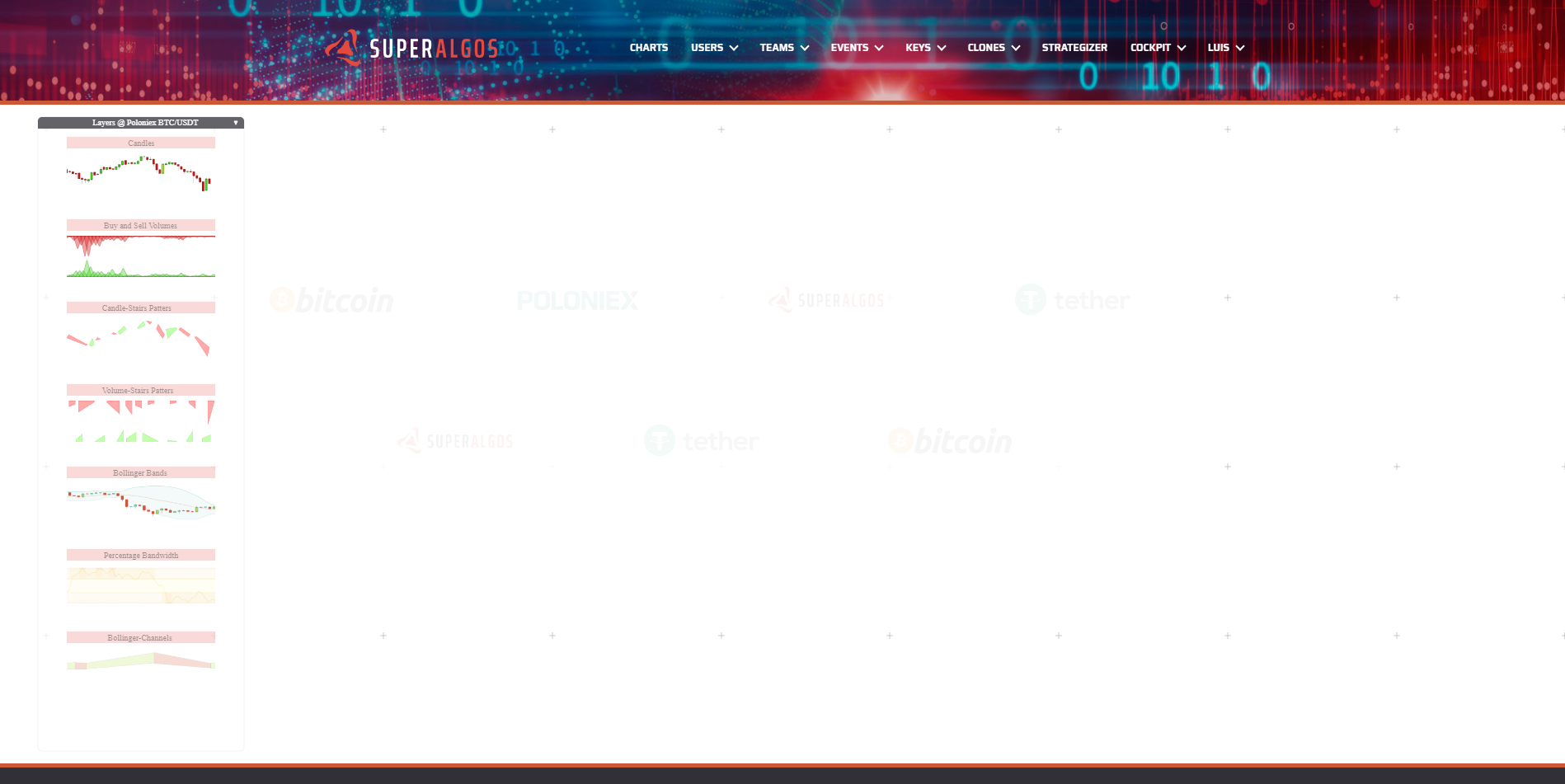
The first time you access the Canvas App, you will see the following screen with no chart displayed, since the app expects you to select one of the available layers at the Layers Panel on the left:
Layers Panel
This panel includes different layers you may visualize by toggling them on and off with a single mouse clicks. The layer title bar can have 3 possible background colors:
- Red: layer is off.
- Green: layer is on.
- Yellow: layer is loading. If it stays yellow, it means it can't load fully.
Click on the "Candles" layer and wait a few seconds date is loaded and candles are plotted. You should see something like this:
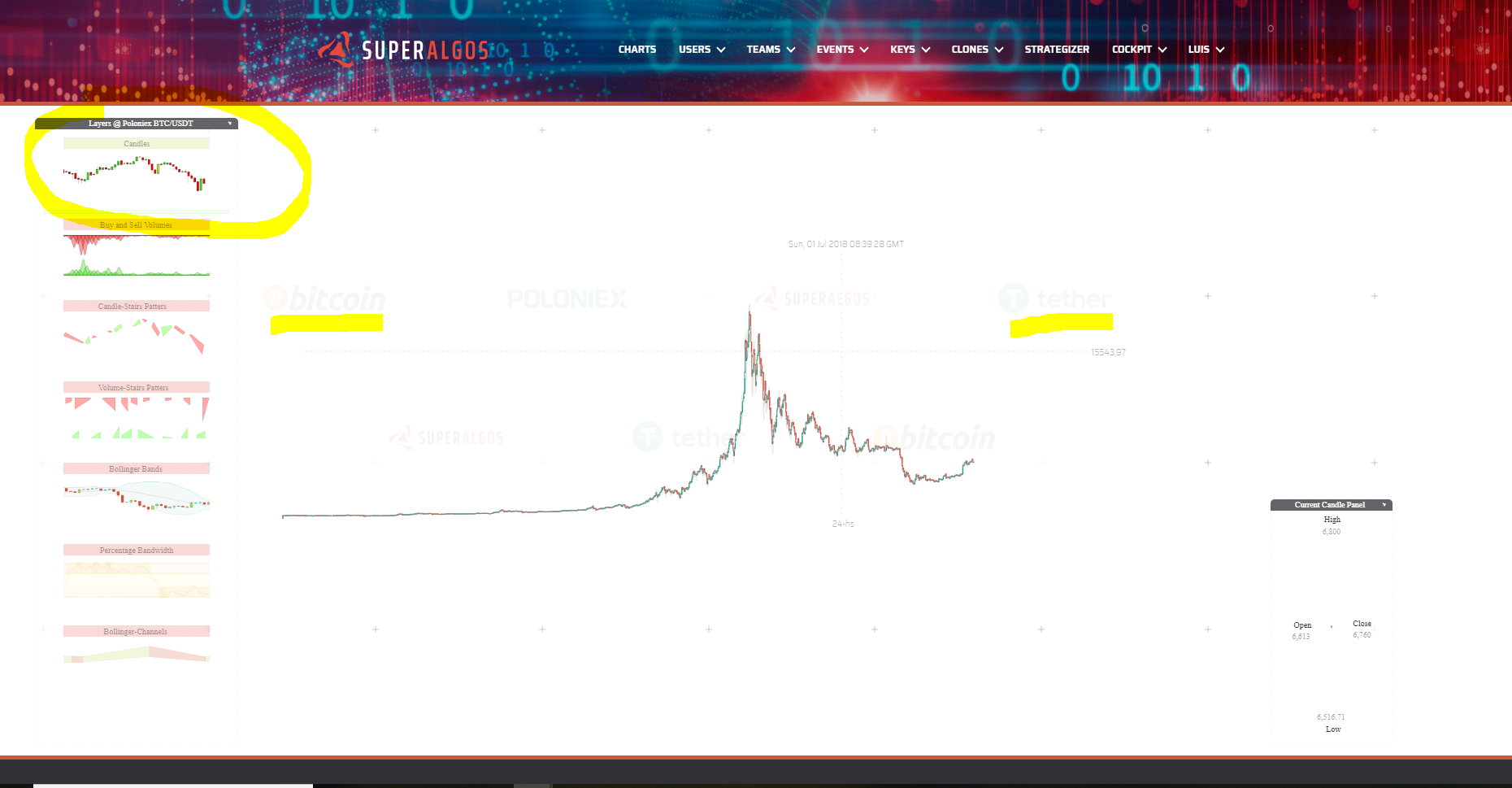
As you may see, the candles belong to the BTC/USDT market @ Poloniex. Even though the app supports other markets and exchanges, it is better for us to have only this one active, while the codebase matures.
Notice the following 3 elements relative to the position of the mouse pointer:
Main Elements
- Above, the current datetime. This is the date and time at the mouse pointer position.
- To the right, the current rate. This is the rate (in this case USDT per BTC) at the mouse pointer position.
- Below, the current time period (or candle size if you wish). This is the currently displayed time period—not only for candles, but for any other object plotted across available layers.
Mouse Wheel Operations
There are many things you can do with your mouse wheel.
- Scroll on top of or next to the datetime to produce a horizontal scaling.
- Scroll on top of or next to the displayed rate to produce a vertical scaling.
- Scroll on top of or next to the time period to change the time period to available values.
- Scroll elsewhere over the chart to zoom in and out. The App will not only zoom in and out of the chart, but also automatically adjust the time period to the most convenient one (for the current zoom level).
- Scroll over the Layers Panel to access layers that may be out of reach downwards.
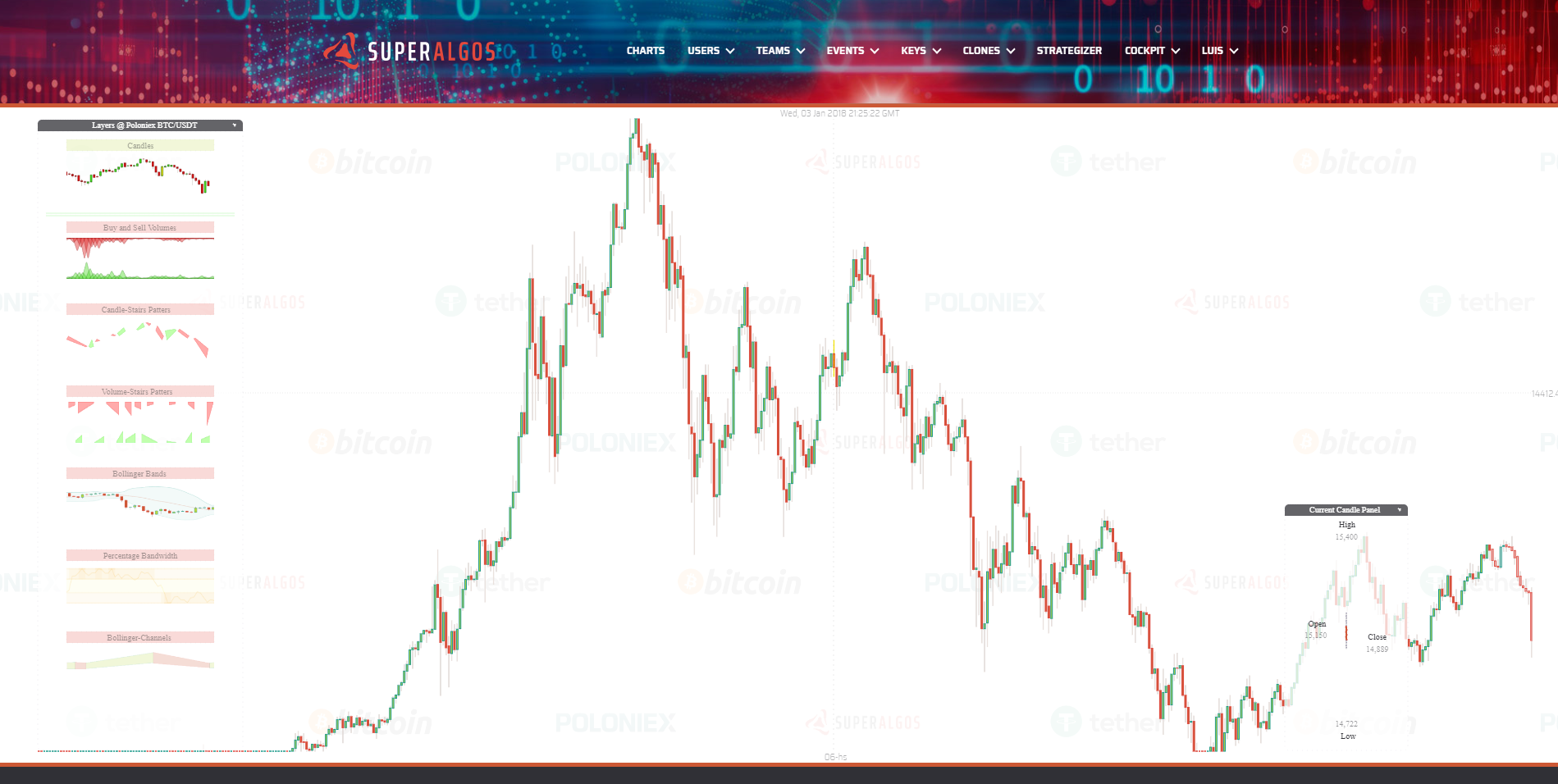
After zooming in the main elements stay at the top, left and bottom of the viewport as you can see in the next screenshot:
Moving Panels
Drag and drop right-clicking on the title bar.
Minimizing Panels
Click on the small triangle on the right of their title bar. This will automatically position the panel at the bottom of the screen. Clicking again restores the panel to its previous position.
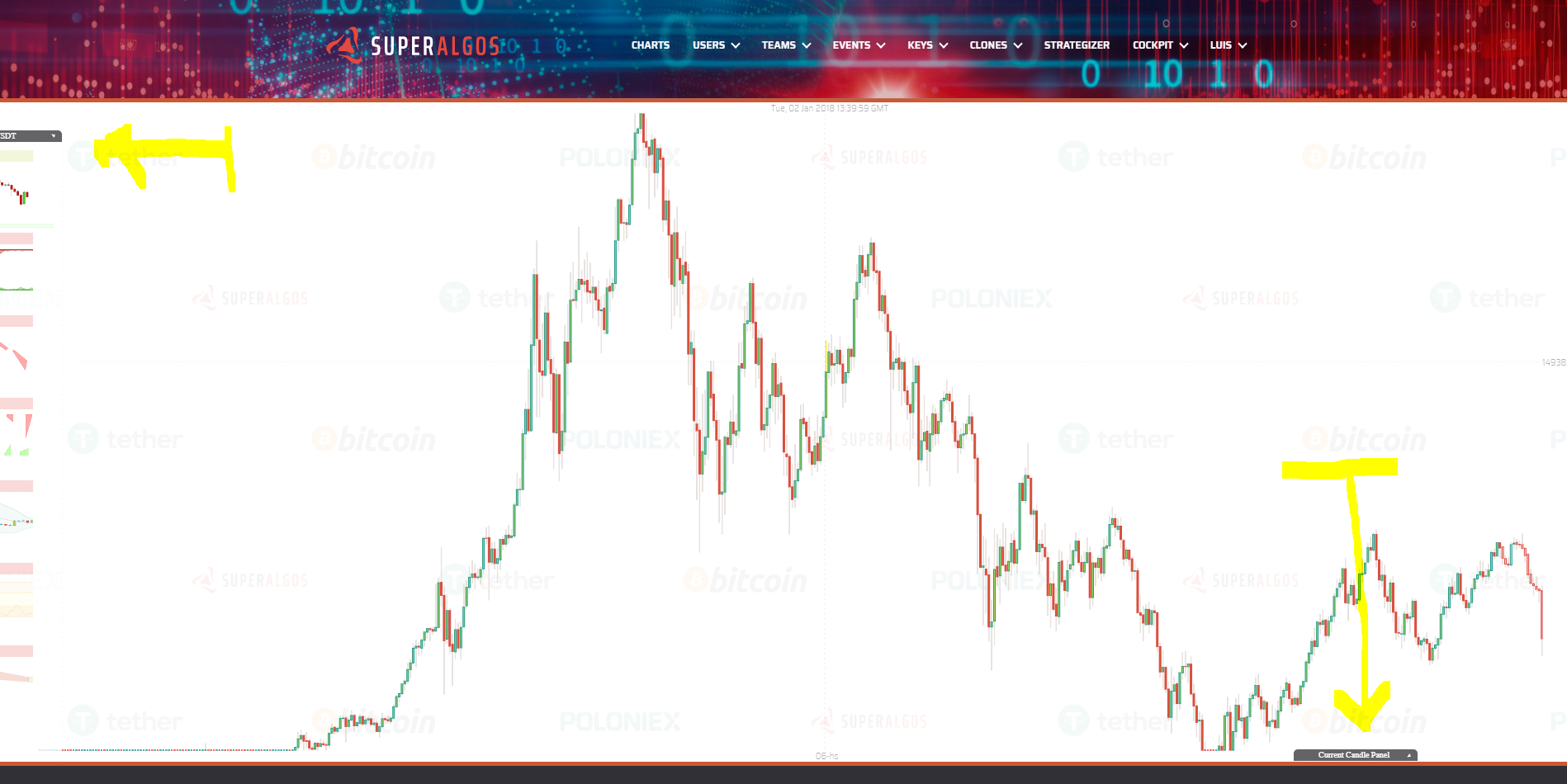
In the following image, the Layers Panel was dragged to the left and the Current Candle Panel was minimized:
Layers
Superalgos is an open system, meaning anyone can build layers for this charting app. So far—with our current limited manpower—we have created 8 public layers (available without logging in) and 2 private layers (available to logged-in users):
Public Layers
- Candles: Typical candlesticks.
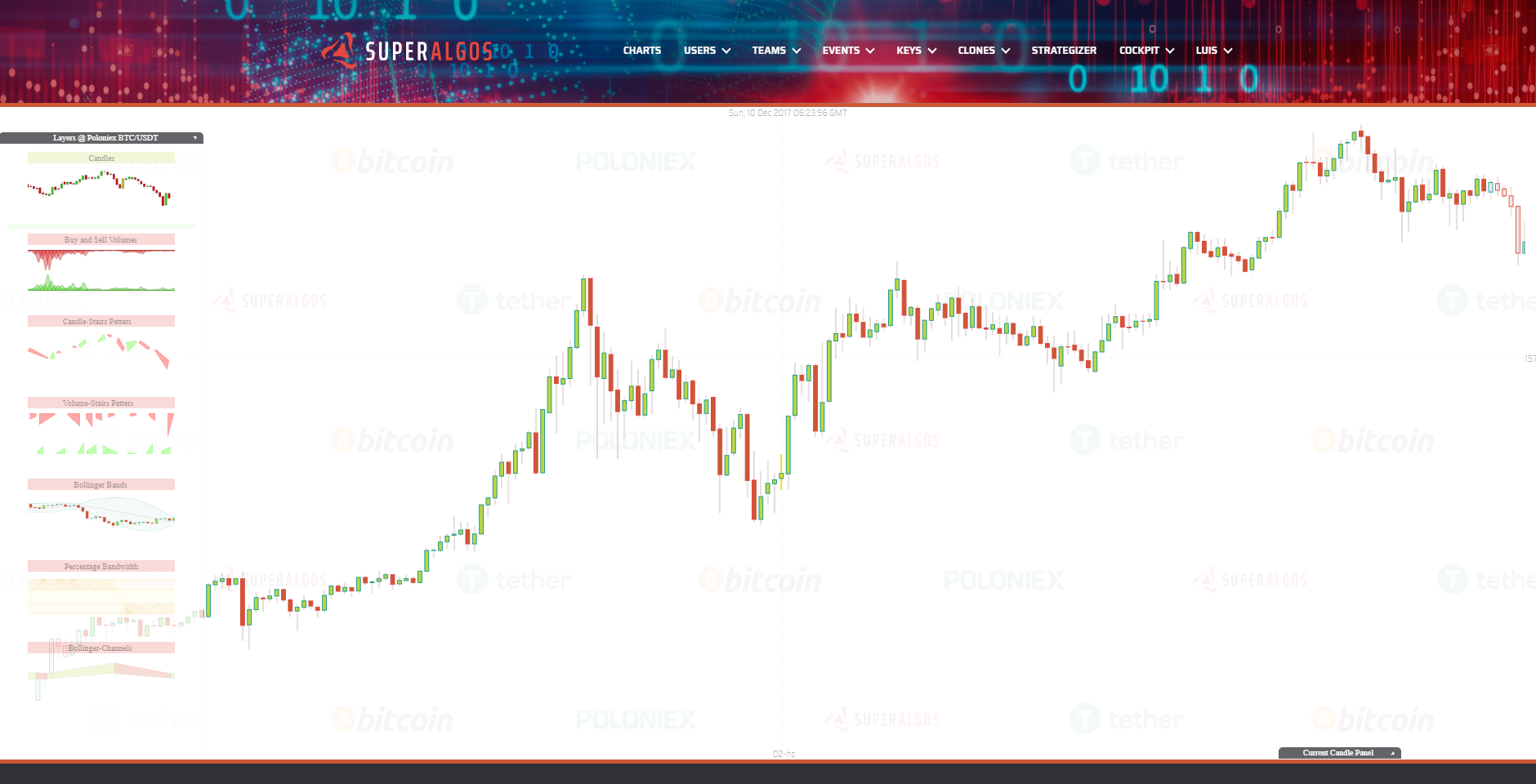
- Volumes: I innovated a bit placing the buy volume at the bottom (in green), and the sell volume at the top (in red).
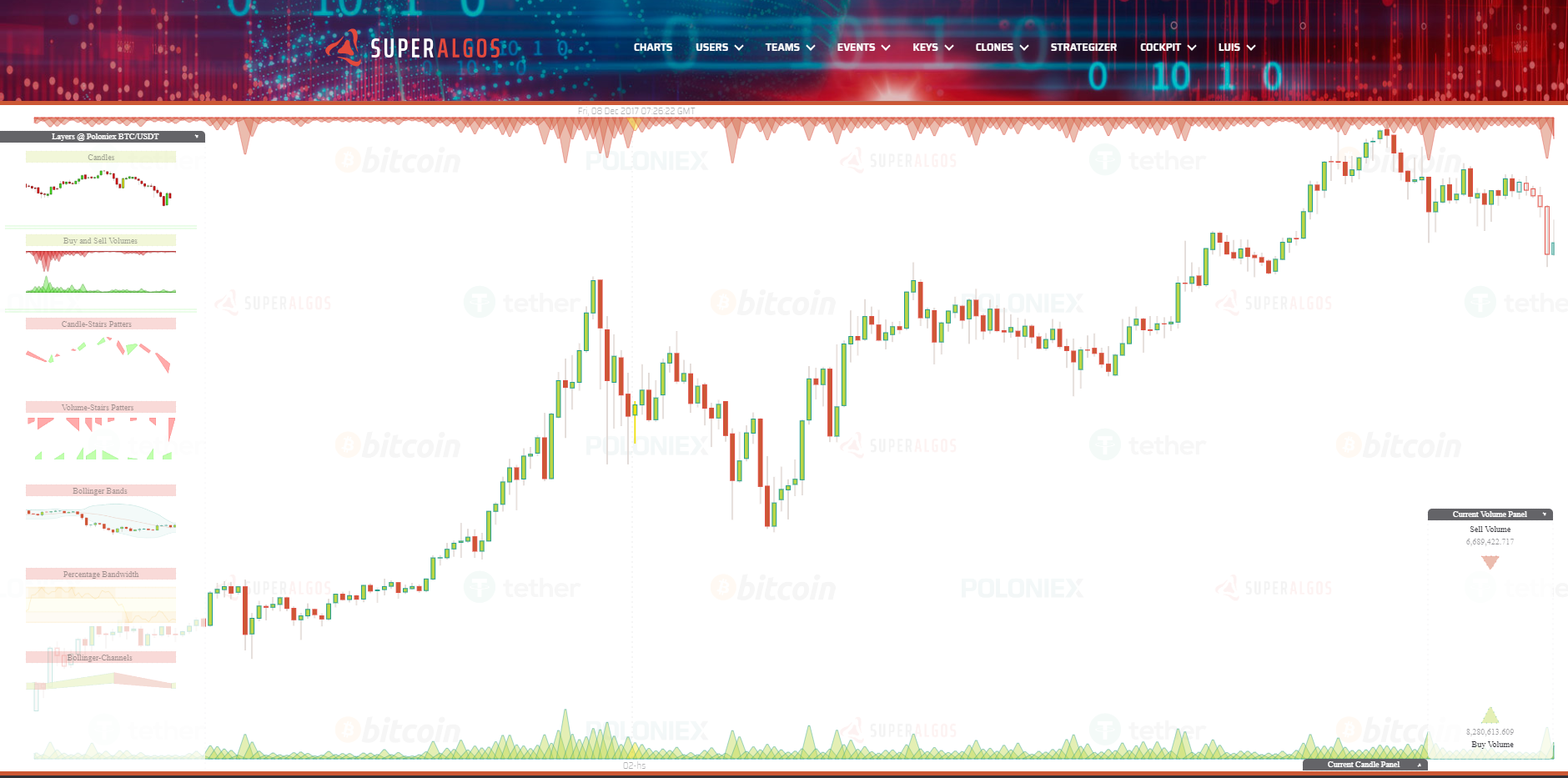
- Candle Stairs Patterns: This is an unusual pattern proving any dataset may be plotted on the charts (and by extension, that anything can be added to the system). A Stair Pattern is defined as a set of candles going in the same direction, either up or down. You can think of these patterns as "Candle Channels", as they represent channels with an up or down direction based on underlying candles direction.
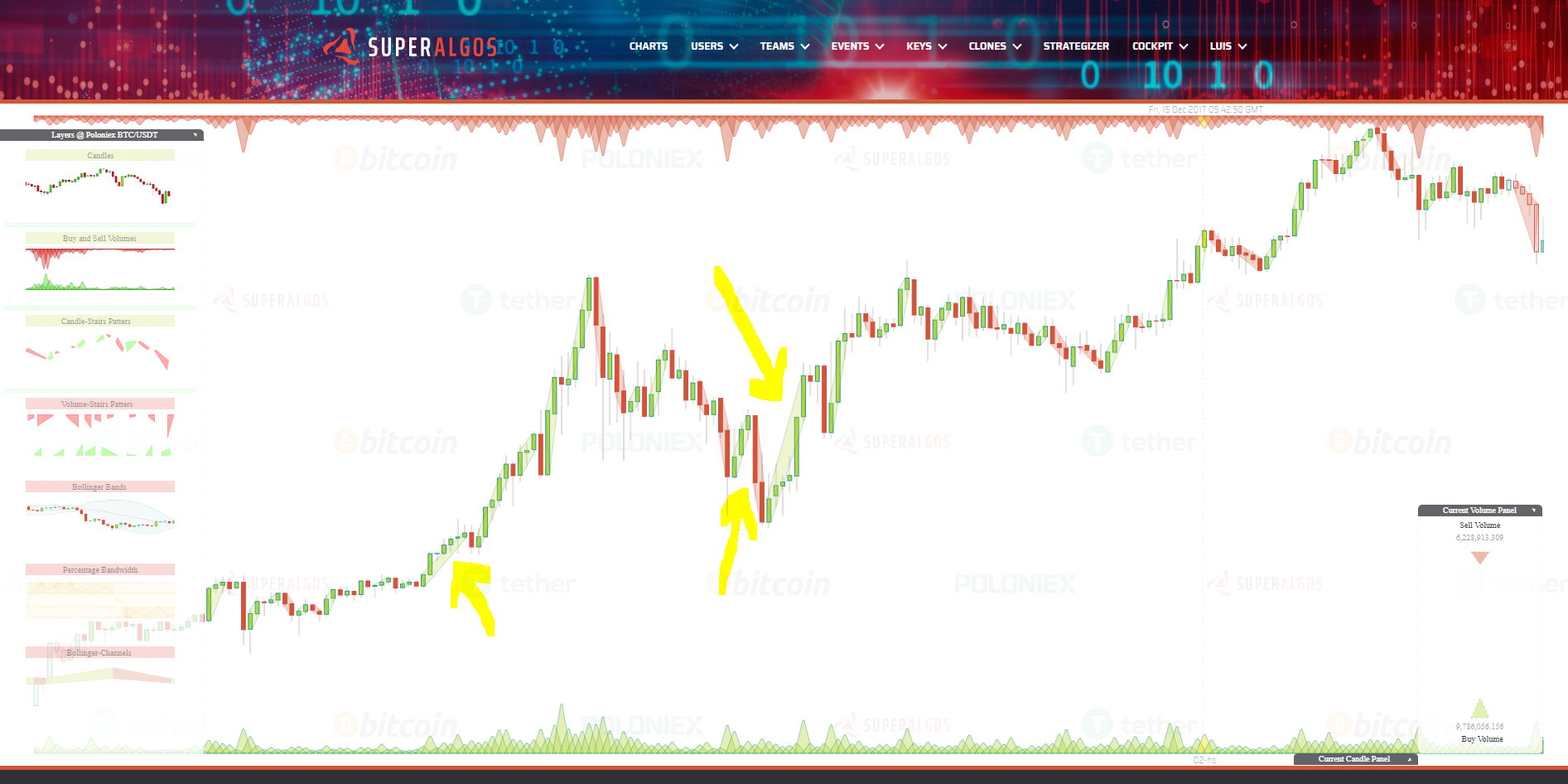
- Volume Stairs Patterns: A similar concept, this time with volumes. Whenever a sequence of volume bars is found where each one is bigger than the previous one, they are bundled together in a "Stair". The same applies when they are going down (the next is smaller than the previous one). For a trading bot, this serves to identify if sell or buy volumes are raising or declining, if any.
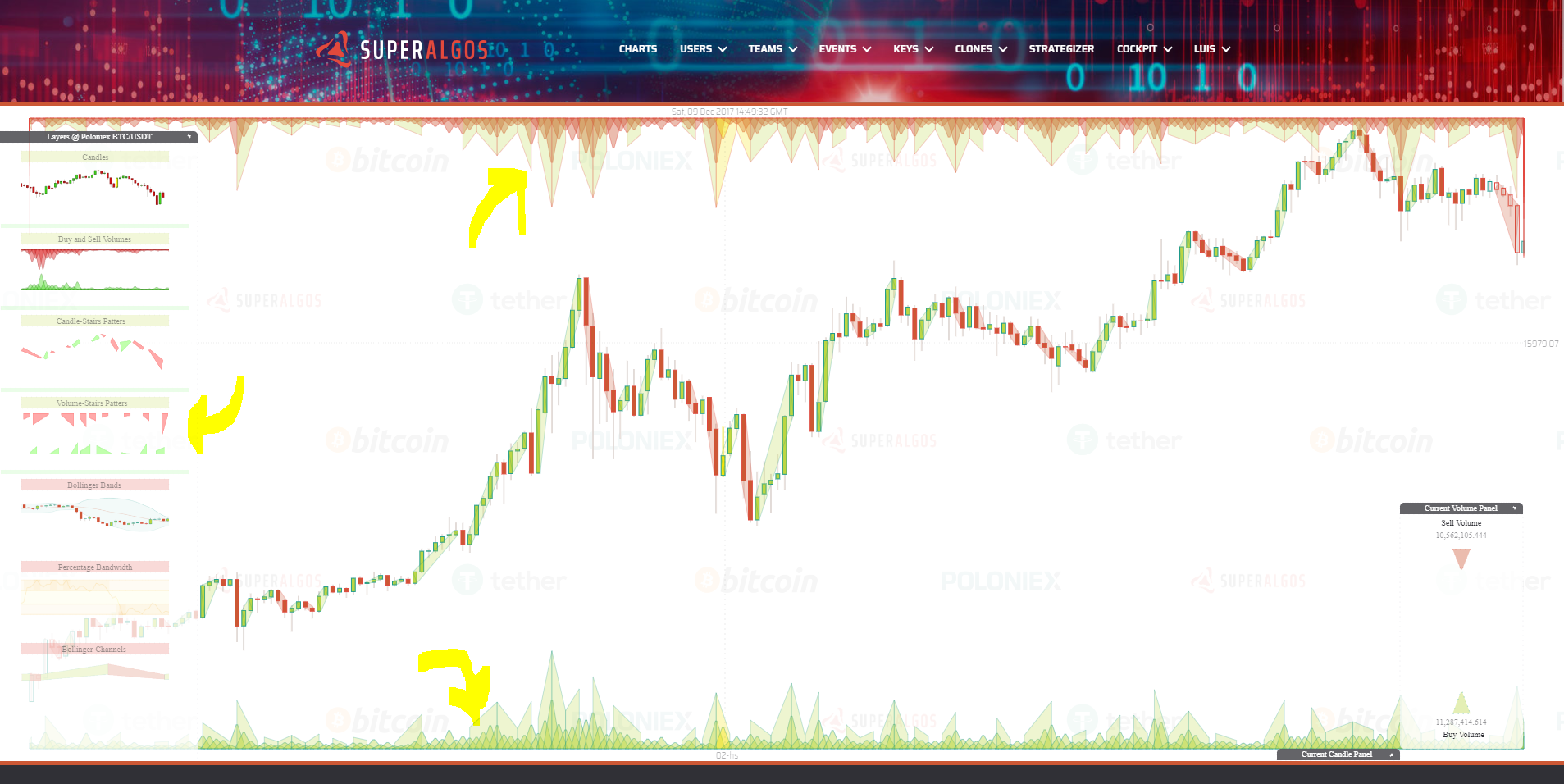
- Bollinger Bands: This is the traditional (Bollinger Bands indicator)[https://en.wikipedia.org/wiki/Bollinger_Bands]. Bollinger Bands have a moving average, in our case calculated with the last 20 periods (the line in the middle of the bands). We are plotting the moving average with one color when it is going up, and with a different color when it's going down. The upper band is at 2 Standard Deviations from the center, pretty much like the lower band, also at 2 Standard Deviations. These are the most widely used Bollinger Bands settings.
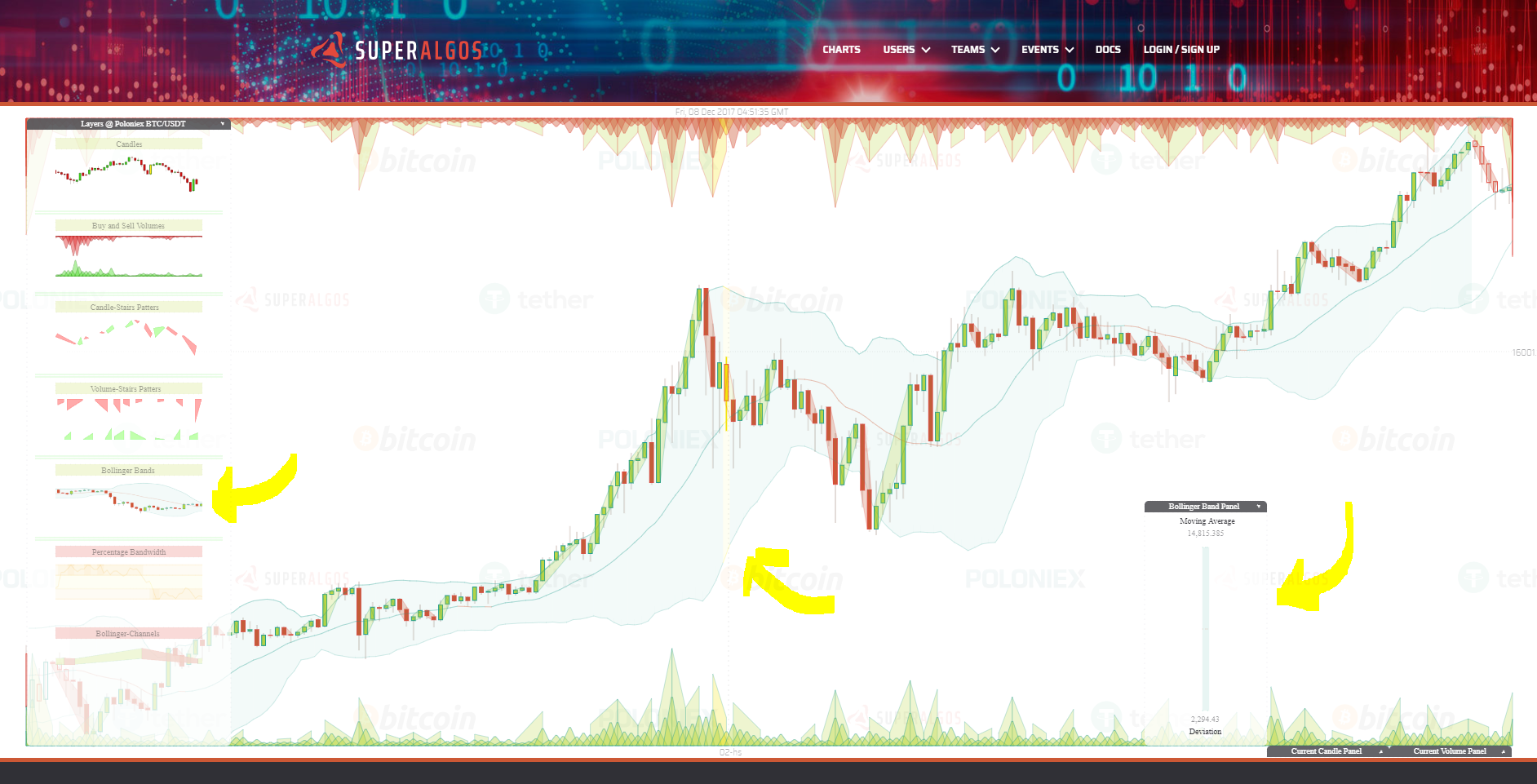
- Percentage Bandwidth or %B: This is a well-known indicator that derives from the Bollinger Bands. In a nutshell it tells you how close the price is either to the upper band or the lower band at any point in time. When the price is in the middle of the bands (it is calculated with the close value of each candle), then %B is in the middle of its chart, at value 50. When the price touches the upper band, then %B is at 100, and finally when the price is at the lower band, then %B is at 0. The chart contains lines at %B value 30 and 70 since those are the most common values for traders to forecast when a reversal may happen. In our chart, %B is the one represented at #1. I've found useful to add a moving average in order to smooth volatility a bit, and to be able to ask—at any time—if it is going up or down. The moving average calculated with the last 5 %B values is plotted as line #2. Finally I also added a property called Bandwidth, which represents the separation of the upper band from the lower band. It is a measure of the volatility and is plotted at #3.

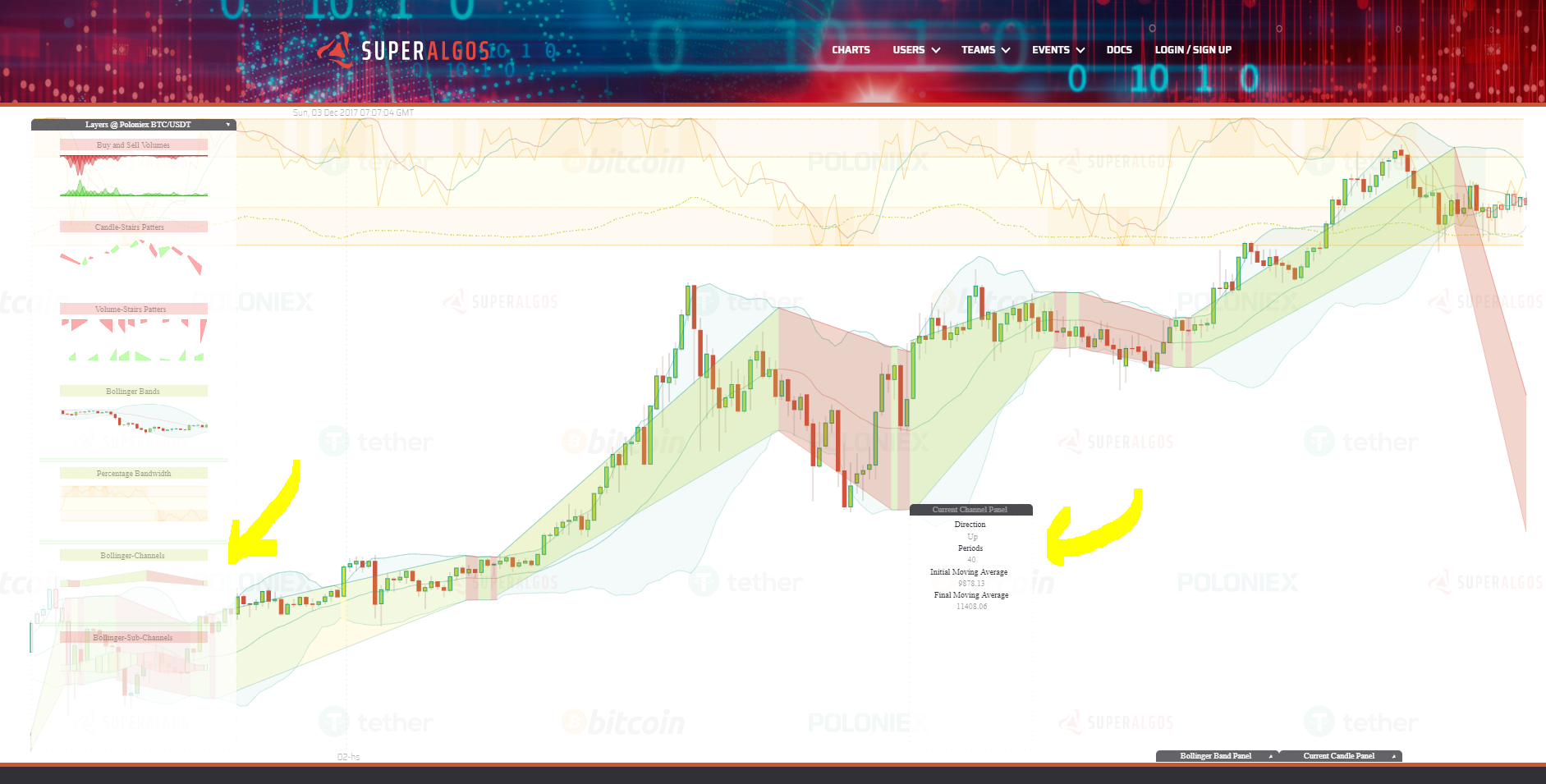
- Bollinger Channels: This is a non-standard indicator derived from the Bollinger Bands. These types of channels are calculated using the Bollinger Bands moving average. Essentially an upward channel begins when the moving average turns from going down to going up, and the channel finishes when it turns from going up to down. A downward channel starts when the Bollinger Band moving average turns from going up to down, and it finishes when it starts going up again. Upward channels are plotted in green, while downward channels in red. Additional information can be found at the indicator's panel, like the number of periods contained at the channel.
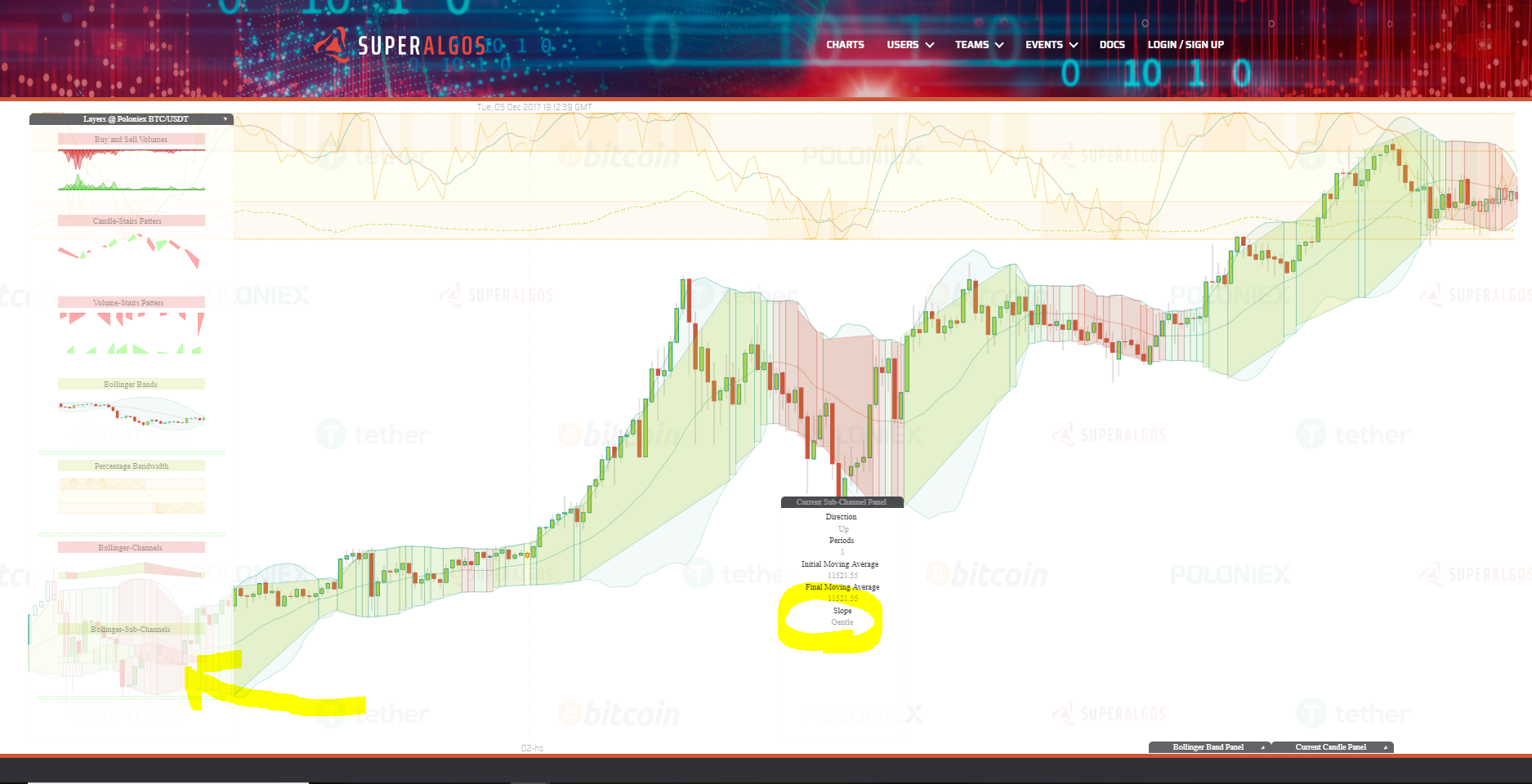
- Bollinger Sub-Channels: If we consider that one Bollinger Channel can have sub-channels with the same direction (up or down) but different slopes, then we get to the concept of Bollinger Sub-Channels. The most important property of a sub-channel is its slope. The possible values are: side, gentle, medium, high and extreme. With this information, a trading bot could easily ask if it is in a sub-channel with a certain slope and for how many periods.
Private Layers
- Trading Simulation: The Trading Simulation layer displays a backtest + fordwardtest (paper trading) of whatever strategies you have created in the system. At sign up, you are provided with an initial set of strategies so that you can be up and running as quickly as possible. By activating the Trading Simulation layer you should be able to see something like this:
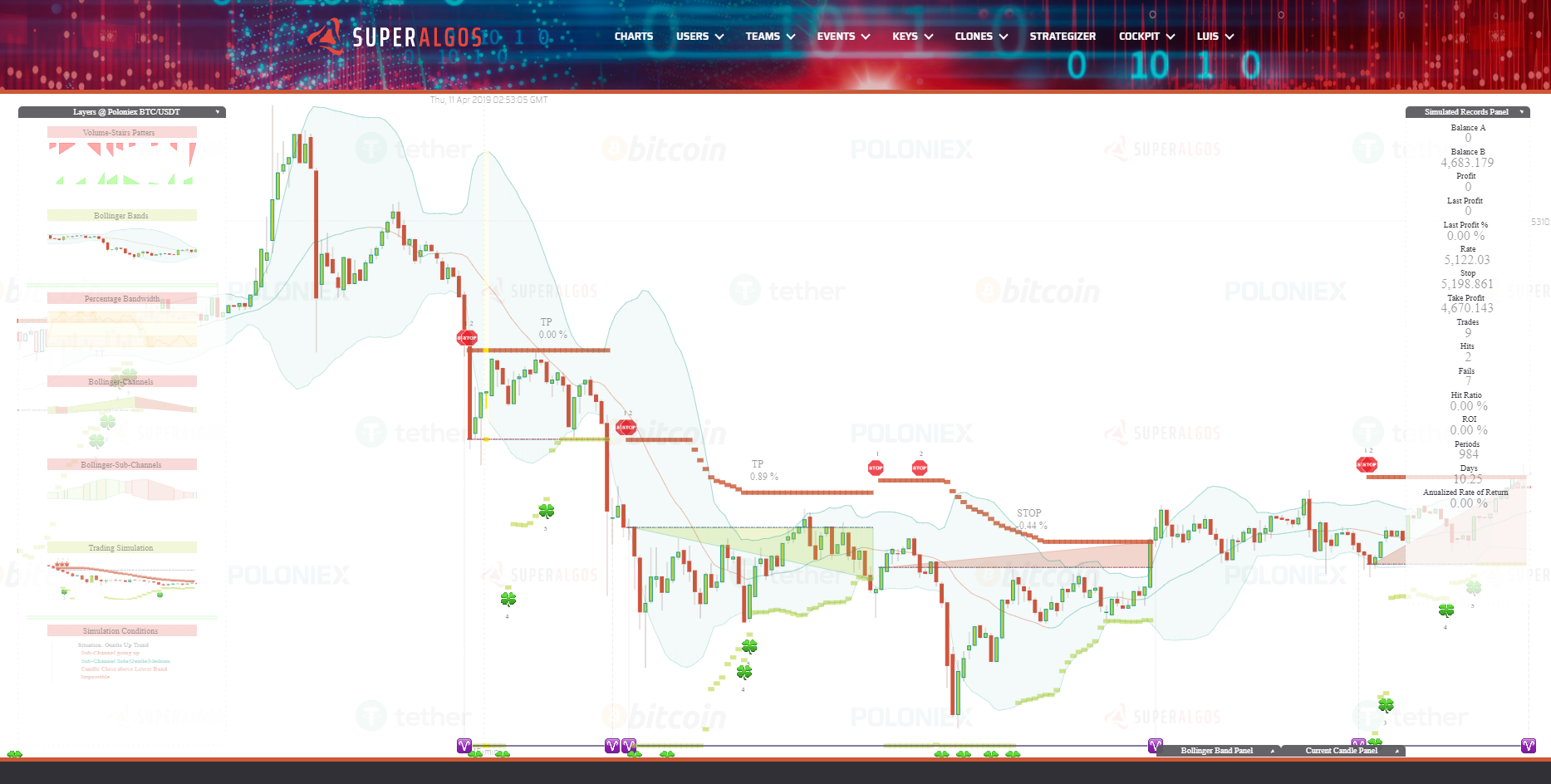
Let's take a moment to analyze what you see on the chart:
A. This shows you when you entered into one of your strategies (think of it as if the strategy was activated because when activation conditions were met). The first icon represents the moment when you entered into that particular strategy, and the second icon represents the moment you left the strategy.