
7.4 KiB
layout, title
| layout | title |
|---|---|
| page | Advanced Backtesting |
Topics
- Adding new sessions
- Linking processes and sessions
- Sessions folder name
- Testing logic variations
- Testing on non-linear date ranges
Adding New Sessions
The platform allows for having multiple testing sessions. You may add and work with multiple sessions in two different ways:
1. Independent Task
Each task is an independent process at the operating system level, which handles its own memory allotment, and may be controlled and killed independently.
A process running under its own task may not be affected by errors occurring on other processes.
For the reasons above, you may choose to run each testing session on separate tasks.
The easiest way to create sessions under this configuration is by cloning an existing task and dropping the cloned file back on the Designer. Once the new task is on the Designer, you may chain it to your preferred task manager.
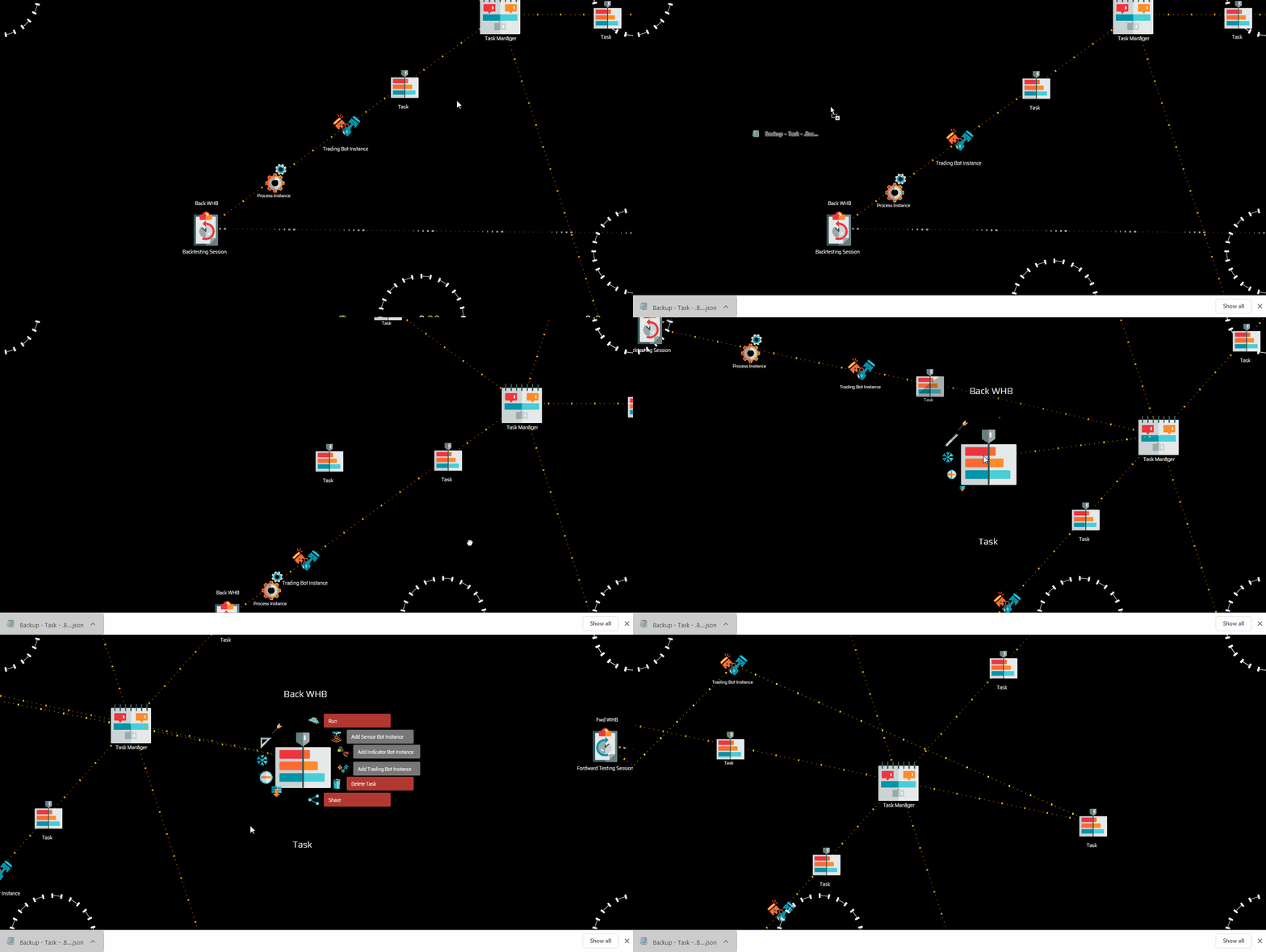
NOTE: You may even choose to set up an independent task manager. Simply go to the My Computer network node and click Add Task Manager.
2. Shared Task
You may decide that you don't need independent tasks for each of your backtesting sessions or prefer to handle multiple sessions under one task.
To create new sessions under such configuration you need to clone the process that runs one of the existing sessions, and drop the clone on to the Designer. Then, structure of nodes the process to the trading bot instance and give the session a new name.
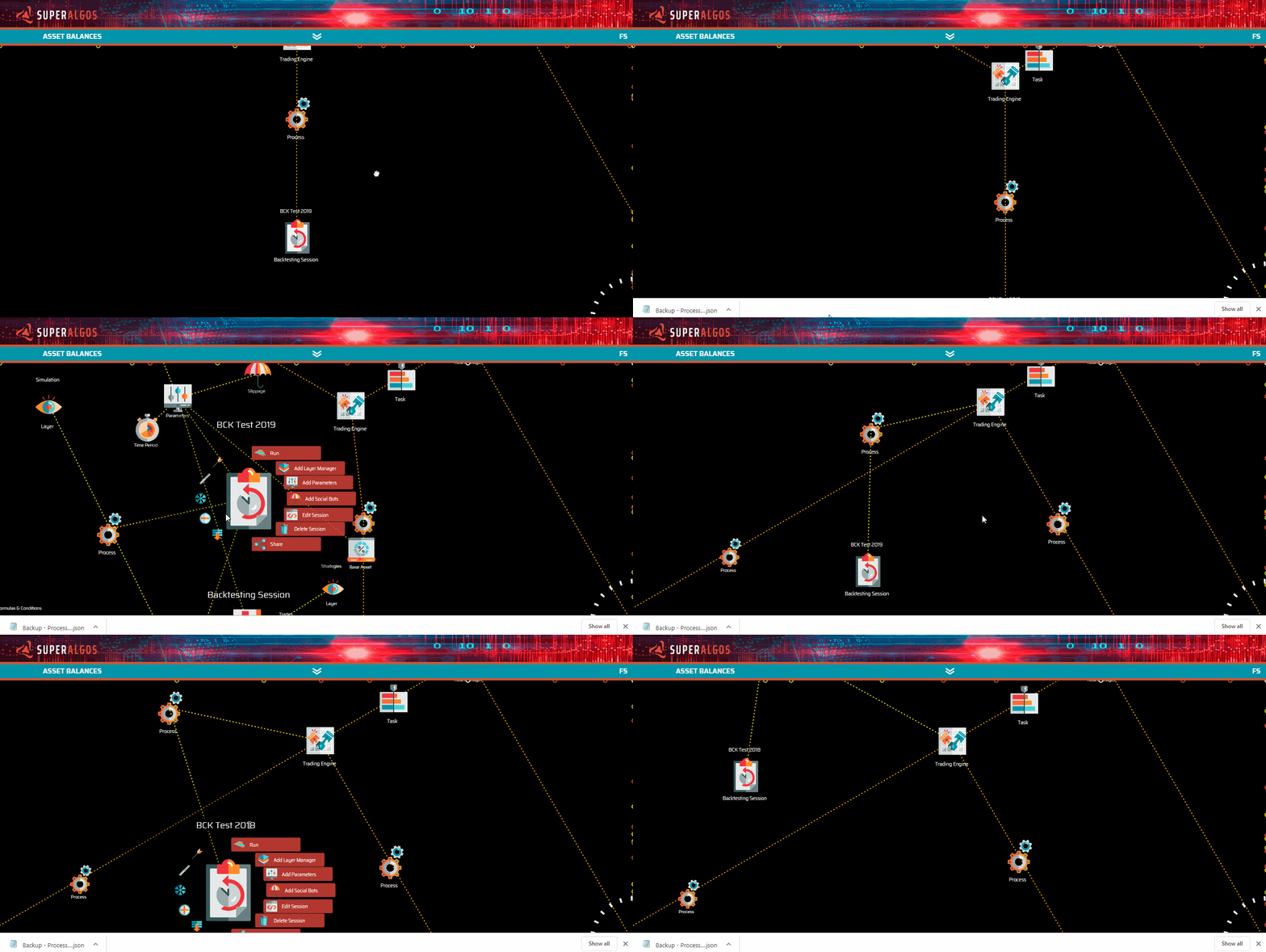
The number of backtesting sessions you may run simultaneously is capped by your machine's processing capacity. Current tests indicate that a dual-core processor at 2.4GHz may process up to 5 sessions at the same time without compromising the machine's performance.
Running more sessions than the optimal number your machine may process efficiently may result in the sessions taking more time to process than if they were run in a sequence.
Linking Processes and Sessions
If you followed the above process, cloning the whole task or process structure of nodes to duplicate a session, you do not need to do anything else... your new session is already up and running.
However, if you decide to create a new structure of nodes by creating each individual node at the time, you will need to continue with the following steps.
Process
Every time you create a new session you need to establish a reference from the process instance to the Multi-Period process of Jason, the trading bot. Jason lives within the Masters team.
To do this, you first need to locate Jason. Hit Ctrl or ⌘ + Alt + M (M for Masters) and click  on the menu.
Now hit Ctrl or ⌘ + Alt + J (J for Jason) and click on the menu. Look around among Jason's offspring nodes and find the Multi-Period process definition.
Now you need to drag your process all the way here and establish teh reference with Jason's Multi-Period process definition by pulling it close using the right button of the mouse. Once the reference is established, you may let your process drift back to where it belongs.
The easy way to drag the process all across the workspace is to right-click it, and use the keyboard Ctrl or ⌘ + ↑ and ← to start panning in the direction of Jason. Just follow the rest of the grey lines corresponding to the references of other processes to find your destination.
Once you are in the vicinity of Jason, stop, take a pause and pin the data process so that it doesn't fly back to its parent node. Now locate the Multi-Period process definition, right-click on the process instance you just dragged and establish the reference. Make sure you unpin the process instance so that it flys back home.
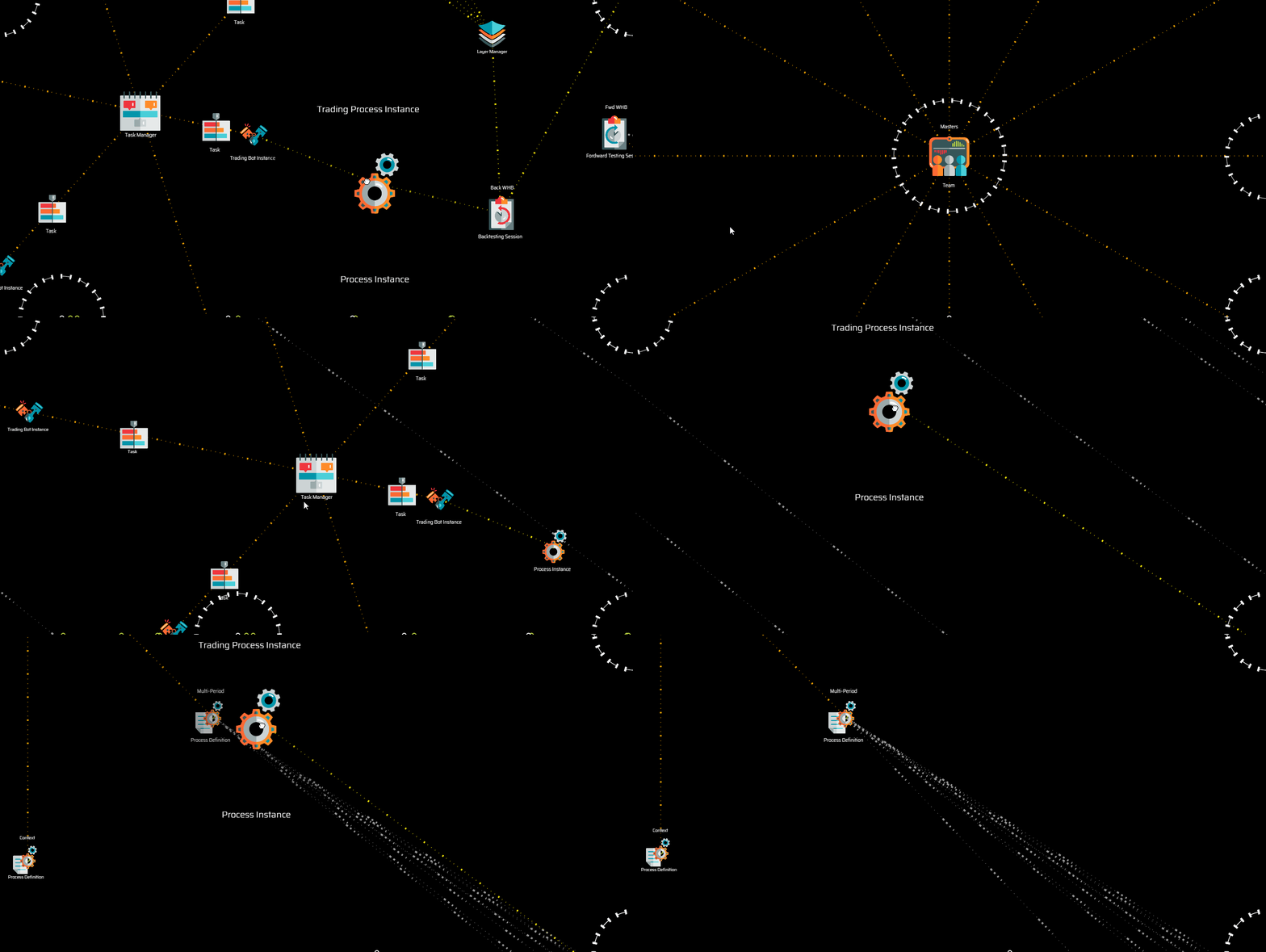
PRO TIP: if you need to link several processes, you may want to reverse the procedure and drag Jason's Multi-Period process definition towards the area where you created the new sessions instead.
Session
You also need to establish a reference between the session and the definition you inted to run the session on. The procedure is similar to the above. Drag the session towards the definition you intend to test on and pull it closer using the right button of the mouse to establish the reference.

Sessions Folder Name
Before you use the new session, you may want to edit the configuration by clicking Edit Session on the menu:
{
"folderName": "Session-Name"
}
The session name you use in the configuration will be taken to name the folder in which the trading bot will store the simulations corresponding to this session. This may be useful should you ever need to look directly into the data.
Testing Logic Variations
Being able to run multiple backtesting sessions allows you to speed up the strategy tuning stage.
For instance, you may want to check how different variations of a condition in the take position event affect the results. To tests all variations at the same time, you would:
1. Replicate a backtesting session by cloning the corresponding process node (along with its offspring) and dropping the clone back on your workspace, as many times as you require, attaching it to an available trading bot.
2. Rename each backtesting session with a significant name that is related to the different variations of the condition you wish to test.
3. Set up the first variation of the condition and run the corresponding backtesting session. Replace the first variation with the second one, and launch the second backtesting session. Repeat as many times as desired.
Testing on Non-Linear Date Ranges
It is a known fact that testing and optimizing a strategy over a complete dataset may lead to overfitting.
Being able to set up multiple backtesting operations allows you to segment your dataset as you may consider appropriate, for instance, creating sessions to test only on odd months, every three or six months, or in a more random-like arrangement.
The system provides enough flexibility to accommodate different backtesting criteria and styles. It is up to you how to set it up.