3.4 KiB
title, summary, sidebar, permalink
| title | summary | sidebar | permalink |
|---|---|---|---|
| Charts Interface | suite_sidebar | suite-charts-interface.html |
Main Nodes
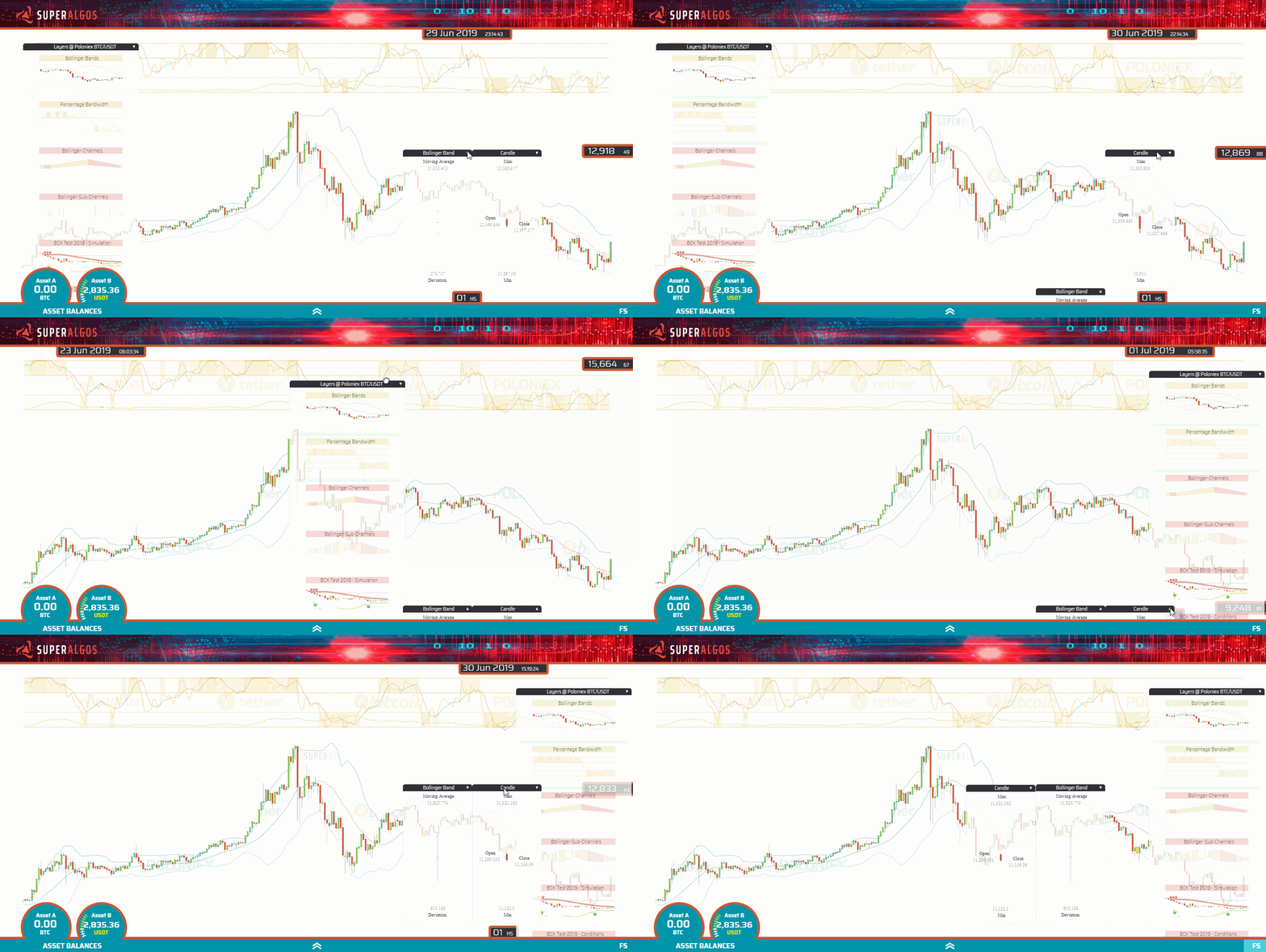
Notice the following three nodes relative to the position of the mouse pointer:
1. Above, the current datetime. This is the date and time at the mouse pointer position.
2. To the right, the current rate. This is the rate (in this case USDT per BTC) at the mouse pointer position.
3. Below, the current time period (time frame or candle size if you wish). This is the currently displayed time period—not only for candles but for any other object plotted across available layers.
Mouse Navigation
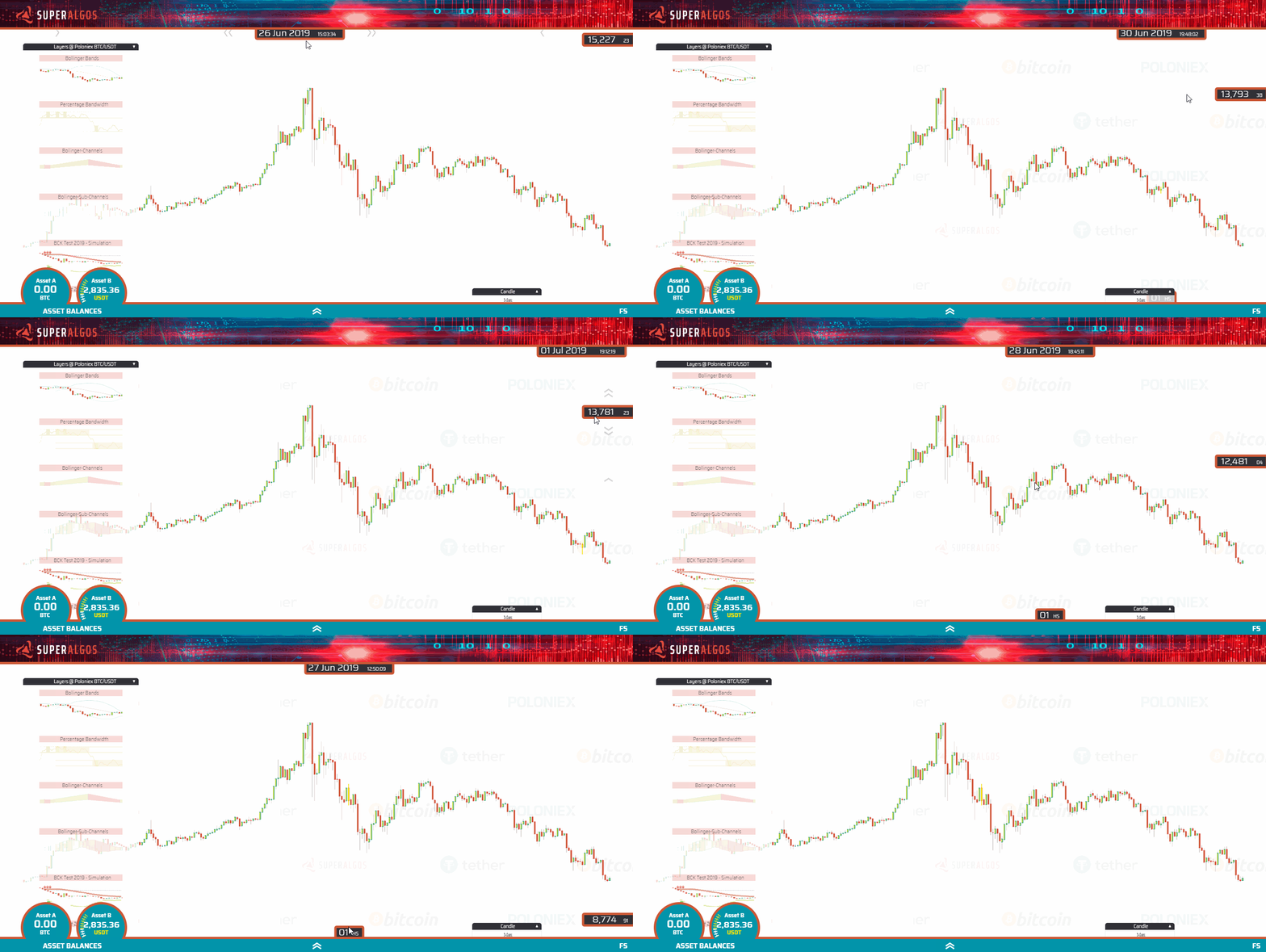
Left-click on the charts and drag to move across the charts.
There are many things you can do with your mouse wheel:
- Scroll over the Layers Panel to access layers that may be out of reach downwards.
- Scroll on top of or next to the datetime to produce a horizontal scaling.
- Scroll on top of or next to the displayed rate to produce a vertical scaling.
- Scroll on top of or next to the time period to change the time period to available values.
- Scroll elsewhere over the chart to zoom in and out. The Platform will not only zoom in and out of the chart, but also automatically adjust the time period to the most convenient one (for the current zoom level).
Keyboard Navigation
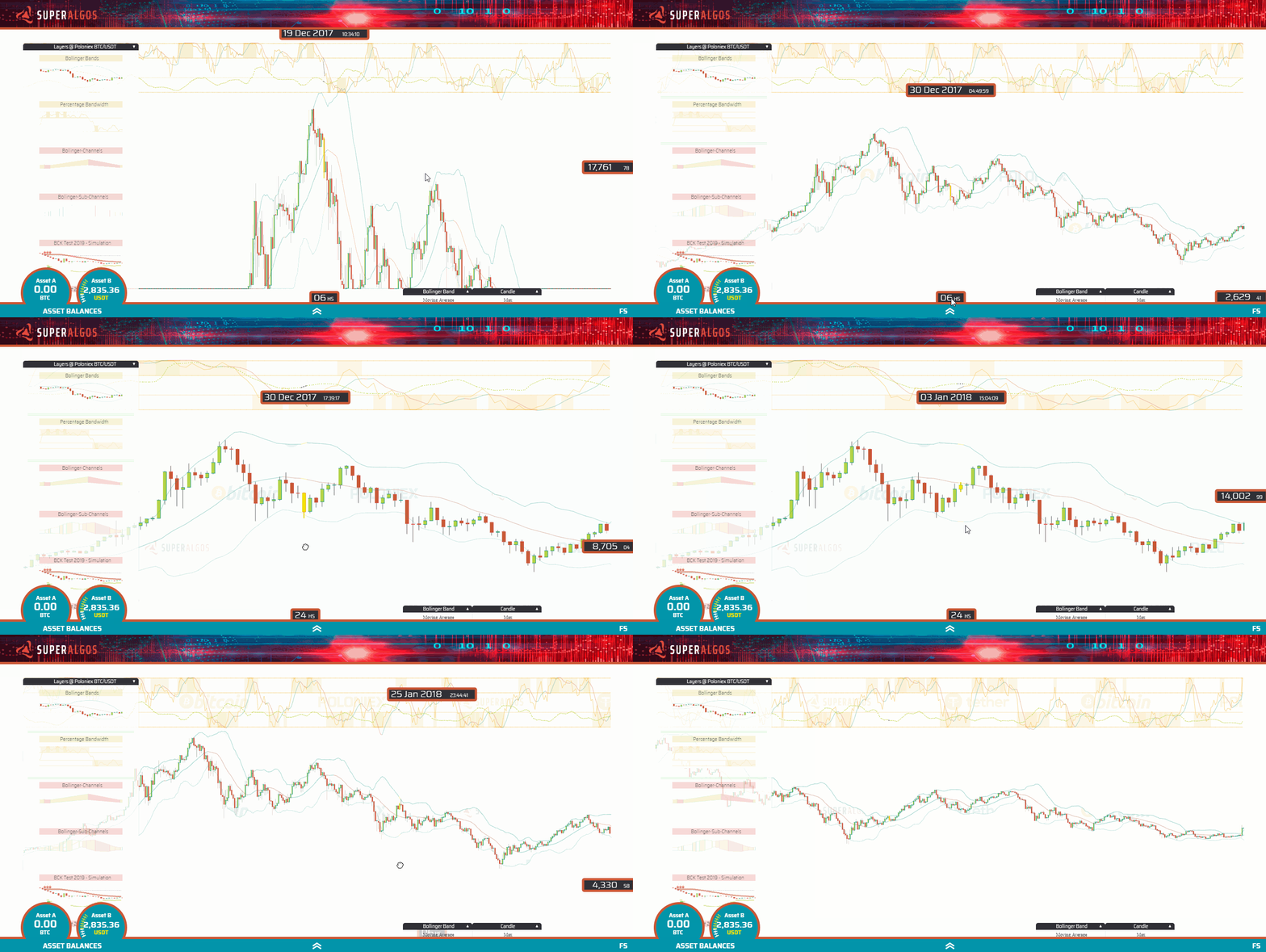
When on the charts, you may use the following key combinations:
- Shift + ← to pan to the left.
- Shift + → to pan to the right.
- Shift + ↑ to pan upwards.
- Shift + ↓ to pan downwards.
Layers Panel
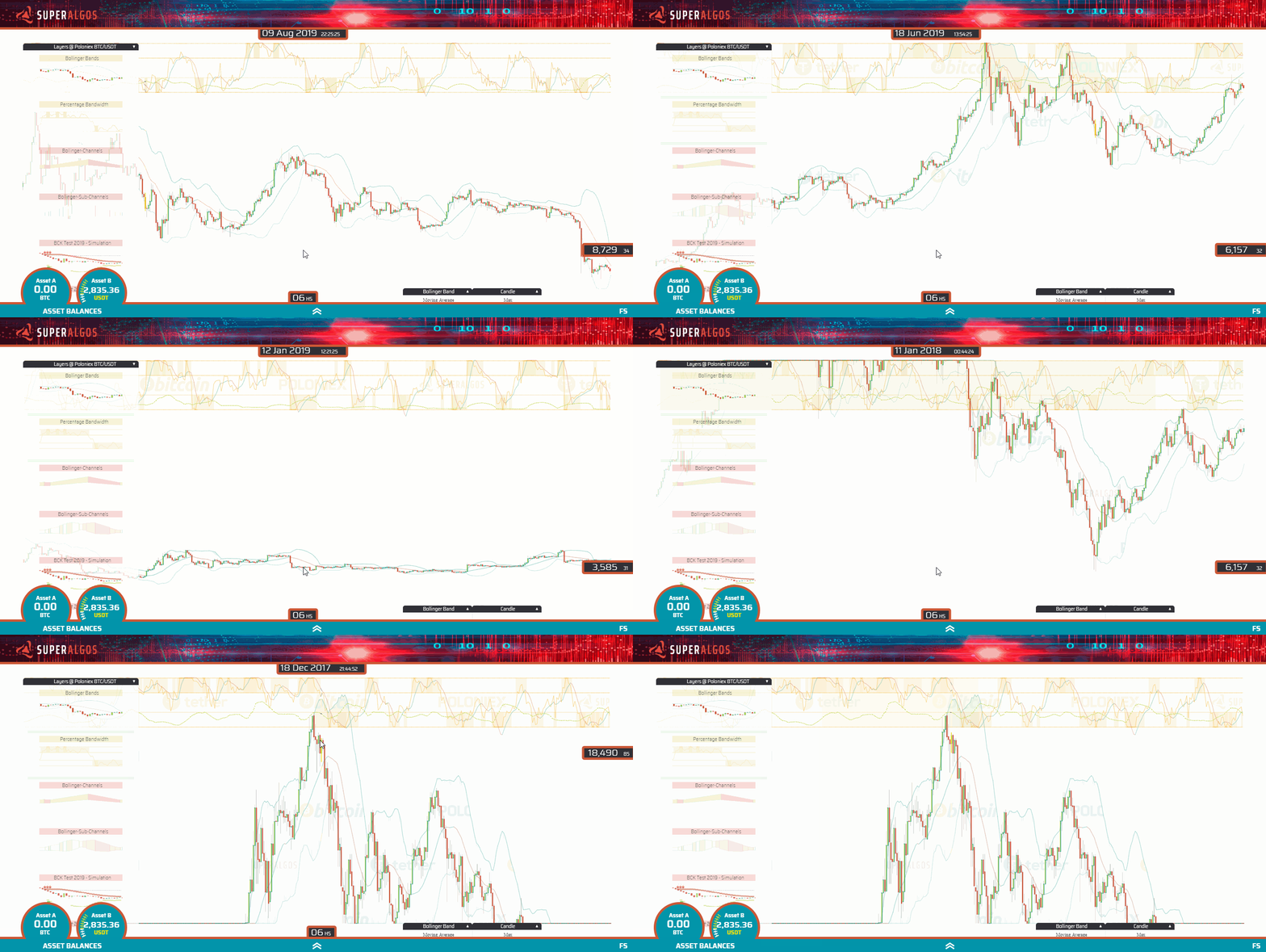
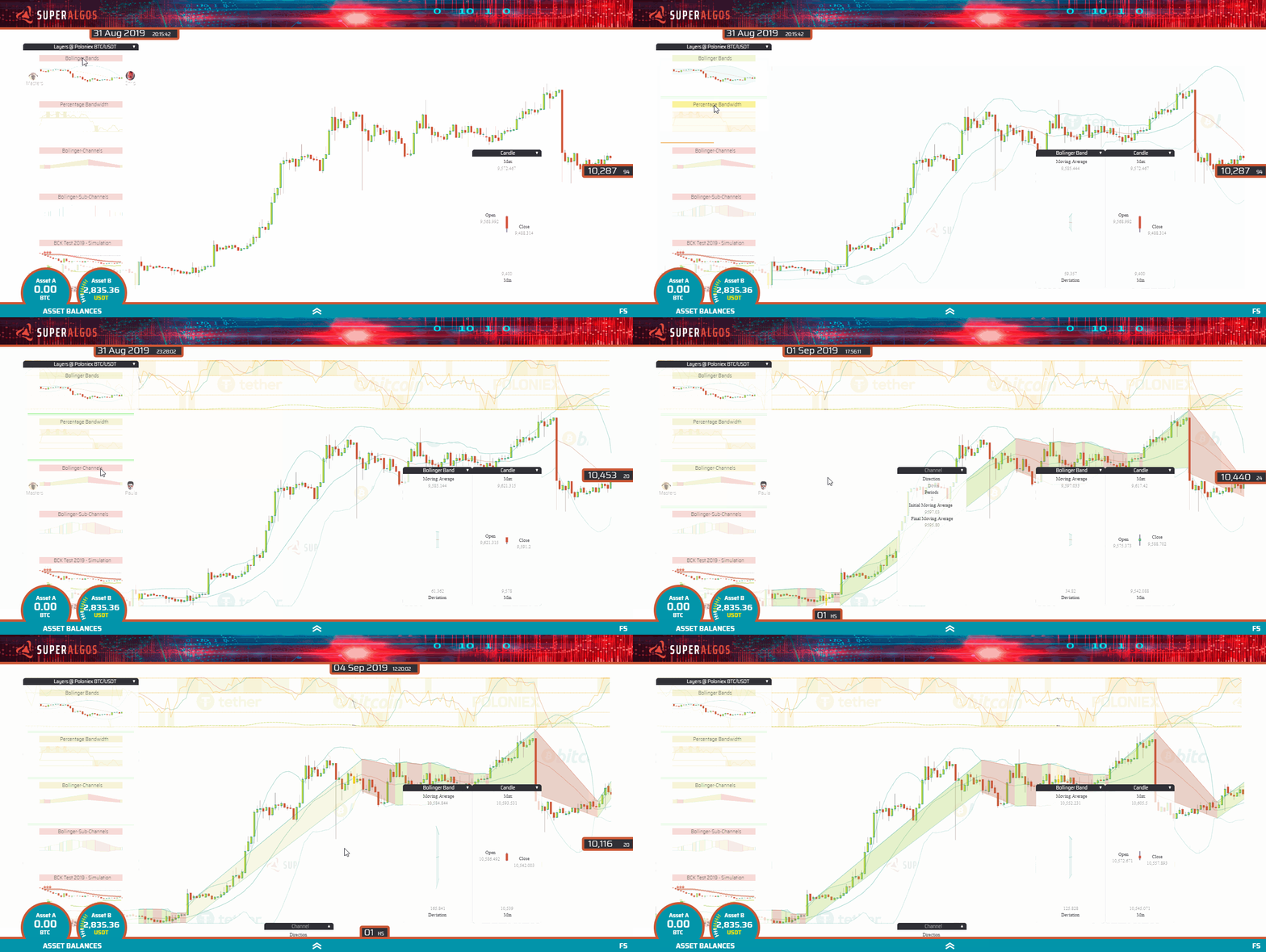
This panel includes different layers you may visualize by toggling them on and off with a single mouse click. The layer title bar can have 3 possible background colors:
1. Red: the layer is off.
2. Green: the layer is on.
3. Yellow: the layer is loading; if it stays yellow, it means it can't load fully.
Floating Panels
To minimize a panel, click on the small triangle on the right of its title bar. This will automatically position the panel at the bottom of the screen. Clicking again restores the panel to its previous position.
You may also drag and drop the panels by right-clicking on the title bar.