
8.5 KiB
title, summary, sidebar, permalink
| title | summary | sidebar | permalink |
|---|---|---|---|
| Design Space Interface | Navigation allows the use of mouse and keyboard. You may also create shortcuts. Node's menu allows controlling the physics of the environment and provides backup, share and clone functions. | suite_sidebar | suite-design-space-interface.html |
Navigation
Left-click on the black background and drag to move around the workspace.
You may also use the following key combinations on your keyboard:
- Ctrl or ⌘ + ← to pan to the left.
- Ctrl or ⌘ + → to pan to the right.
- Ctrl or ⌘ + ↑ to pan upwards.
- Ctrl or ⌘ + ↓ to pan downwards.
You may also use your keyboard as follows:
- Alt + ↑ to close the charts and open the design space.
- Alt + ↓ to close the design space and open the charts.
- Alt + → to open both the design space and the charts, assigning each one-half of the screen.
- Ctrl or ⌘ + Shift + ↑ to pull the separation bar up incrementally.
- Ctrl or ⌘ + Shift + ↓ to pull the separation bar down incrementally.
Node Shortcuts
You may define shortcuts for frequently-used nodes with the following procedure:
- Hover the mouse pointer over the target node until the menu opens up. This puts the node in focus.
- Click Ctrl or ⌘ + Alt + your preferred key to assign the shortcut.
- A sign will appear below the node confirming the assignation of the shortcut.
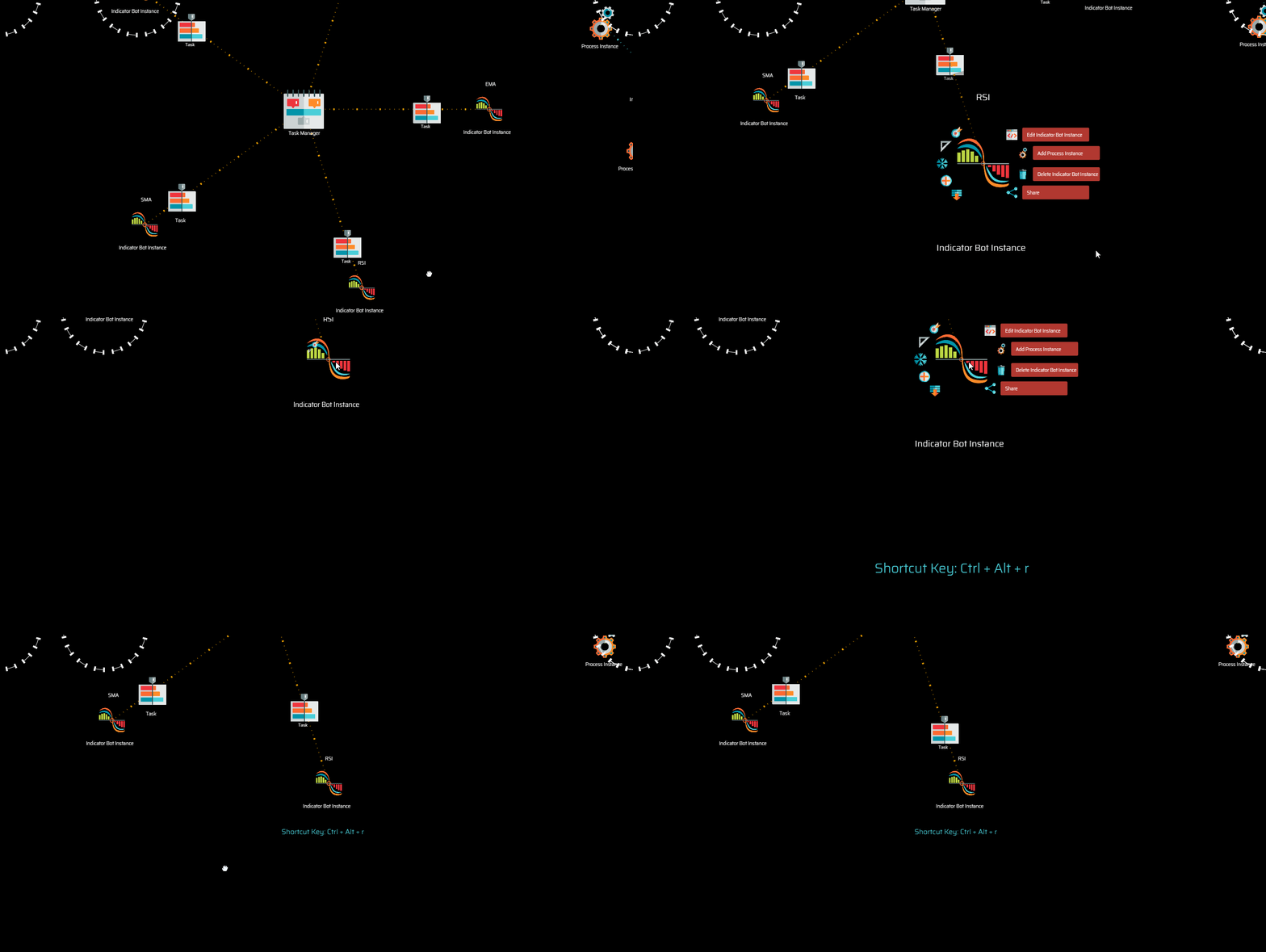
Repeat the same procedure to remove a shortcut.
{% include note.html content="When attempting to assign a shortcut with a keyboard combination that is already in use, the system will notify of the issue. If you insist by hitting the same keyboard combination two more times, the system will assign the shortcut as expected." %}
Node's Menu
Hovering the mouse pointer over nodes causes a menu to pop up. In this situation, the node is in focus.
Arrangement Features
The design space functions under the paradigm of a self-organizing workspace in which nodes tend to find their place guided by certain laws of physics, and constrained by their chain relationships.
This self-organizing paradigm saves users the effort of maintaining the arrangement of nodes in a logical manner, in particular when manipulating or creating new nodes.
However, there will be times in which you will want to override this self-organizing nature. The following menu options are tools that will help you manipulate the arrangement of nodes, overriding the physics that affect their floating nature.
| Icon | Pinned / Unpinned |
|---|---|
 |
The node is pinned to the workspace on a specific [x, y] coordinate. This status overrides any other setting affecting the node's mobility. Only direct user action by clicking and dragging may move a pinned node. |
 |
When a node is unpinned, it is free to be affected by other settings, or find its place floating on the workspace. |
| Icon | Freeze / Unfreeze |
|---|---|
 |
Clicking the freeze option freezes the node's chain connections with its parent and offspring. Connecting lines turn blue. If you freeze the head node of a hierarchy, then the whole hierarchy is frozen. Freezing node structures is effective only when nodes are loose, that is, when they are not affected by angle or distance settings and are unpinned. In such cases, freezing releases CPU resources, as the system stops calculating node's positions and status. |
 |
Clicking the unfreeze option unfreezes connections. If you click the option to unfreeze a node and the node does not change its status, it may be because a higher node in the hierarchy is still frozen. |
| Icon | Collapse / Expand |
|---|---|
 |
Clicking the minus button collapses the structure, hiding offspring nodes. This also has the effect of releasing CPU resources as the system stops calculating their position and status. In general, it is good practice to keep hierarchies closed when not being actively worked on. |
 |
Clicking the plus button expands the structure of offspring nodes. |
| Icon | Angle to Parent — Click to cycle through the different options. |
|---|---|
 |
The rotational symmetry is disabled and the node may take any position. The connection line with its parent is yellow. |
 |
The node is locked to a rotational symmetry around its parent node, with sibling nodes using the same setting. The symmetry spans 360 degrees, and the connection line with the parent node turns orange. |
 |
The slot of the symmetry around its parent node is limited to 180 degrees, and the connection line remains orange. |
 |
The slot of the symmetry around its parent node is limited to 90 degrees, and the connection line remains orange. |
 |
The slot of the symmetry around its parent node is limited to 45 degrees, and the connection line remains orange. |
| Icon | Distance to Parent — Click to cycle through the different options. |
|---|---|
 |
The distance setting is dissabled and the node may assume any distance to its parent. |
 |
The node is locked to a distance from its parent node that is 0.25X of the distance from the parent to its parent. |
 |
The node is locked to 0.5X of the distance. |
 |
The node is locked to 1X of the distance. |
 |
The node is locked to 1.5X of the distance. |
 |
The node is locked to 2X of the distance. |
Productivity Features
The rest of the menu options available in most nodes are the following:
| Icon | Action |
|---|---|
 |
Backup: Downloads a JSON file with the data structure and references concerning the particular node and the structure of offspring nodes in the hierarchy. Use this feature to save your entire workspace or any particular structure of nodes within your workspace so that you may later restore the information, including all references, should you need to. For your reference, the file downloaded is named Backup followed by the name of the node you are backing up. Click to learn more about the nuances of backups. |
 |
Clone: Downloads a JSON file containing information similar to a backup. The main difference is that the feature is built to facilitate the production of identical copies of any particular structure of nodes of a hierarchy, or a complete hierarchy. Use this feature to accelerate your work process when you need to replicate nodes, for example, to create multiple testing sessions. The file downloaded is named Clone followed by the name of the node you are cloning. Click to learn more about the nuances of clones. |
 |
Share: Downloads a JSON file containing information similar to a backup. The only difference is that no personal information is included. This is particularly important so that you do not share sensitive information accidentally, such as your API keys. Always use this function when you intend to share work. Do not share your backups. The file downloaded is named Share followed by the name of the node you are sharing. Click to learn more about the nuances of shares and the potential risks of using shared data structures from untrusted sources. |
 |
Delete: Deletes the node and all its offspring. Confirmation in the form of an additional click is required. |